
Generellt
När du har fyllt i enkäten kan du distribuera den via en e-postlänk. Enkäten kan bifogas till e-postmeddelandet som en textlänk eller en knapp. I den här guiden kommer vi att visa ett exempel på båda.
Start
I den här guiden antar vi att du redan har en e-postmall för att skicka enkäten. Gå till enhetskortet för den e-postmall du har skapat för att skicka enkäten och välj Redigera innehåll.
Lägga till en länk i textformulär
Gå till önskat område i e-postmeddelandet – det här är blocket där länken kommer att läggas till. I exempelbilden nedan kommer vi att infoga länken i textblocket i exemplet. Klicka på Lägg till i redigeringsfältet och välj sedan alternativet Länk till… i listrutan. 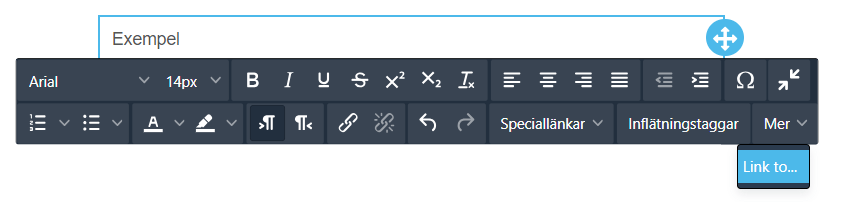 Välj sedan vad du vill länka till. Välj alternativet enkät och tryck på OK. Välj sedan önskad enkät från rullgardinsmenyn och tryck på Spara. När länkningen har lyckats kommer en länk med enkätens namn att visas i det valda blocket. Du kan redigera länken med hjälp av verktygen i e-postredigeraren. Du kan också skriva in länknamnet på nytt – kom bara ihåg att inte ta bort alla bokstäver i länken på en gång, annars försvinner länken och du måste länka den till e-postmeddelandet igen med hjälp av stegen ovan.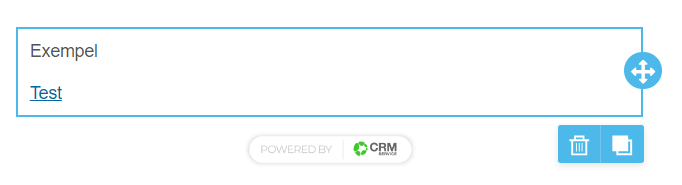
Länka enkäten till en knapp
Att länka en enkät till en knapp görs genom att först lägga till knappen från menyn Innehåll och infoga den på önskad plats. När knappen är vald går du till avsnittet Innehållsegenskaper till höger och därifrån till avsnittet Åtgärder. Under URL-fältet finns en Länk till… som du kan klicka på för att lägga till en länk till enkäten. Precis som i textlänkssteget väljer du enkät som typ av länk och väljer sedan önskad enkät från listan. Efter en lyckad länkning kommer följande text att visas i knappens URL-ruta, vilket anger CRMID-numret för enkäten, för att visa vilken enkät som är länkad till den specifika knappen (se bilden nedan). 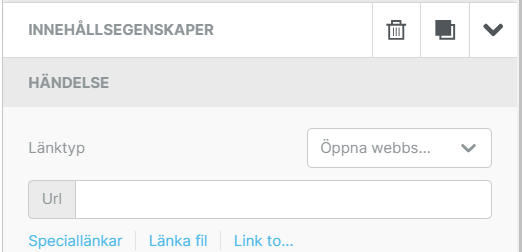 Enkäten har nu länkats till det e-postmeddelande som nu kan skickas till mottagaren.
Surveys – Frequently Asked Questions
Can I edit the style of the survey?
In the survey Theme settings, you can edit multiple style settings like fonts, backgrounds, etc..
Does the survey scale for mobile devices?
Yes, the survey will scale for mobile use, and you can use the preview settings to check how it will look on different devices.
Can I use a template when creating a survey?
Survey Editor has a few ready-made theme templates for easy-to-use layout settings. You can also make a survey you like and then copy it by using a module tool. It is also possible to order a special template made by us for you by contacting our support.
Can I edit the survey after it has already been sent?
Editing the survey is always possible on the surface level, assuring that respondents will get perfect survey. This means that question title and answers visible to receivers can be edited at any time. However to avoid logical errors the values related to question and its answers will be locked from edits after there has been at least one answer to the survey.
How many times users can answer the same survey?
Survey answers are limited to one per sent link to automatically prevent multiple answers for the same survey. If there is a need to receive multiple answers from the same person, using a new email with the survey link does the trick.
Can I edit the survey answers tab to organise the answer data the way I want?
The Survey Responses tab only allows you to view the responses and organise them by date. However, you can always use the Excel export feature to get the answers into the Excel spreadsheet where you can sort, organise and edit them as you wish.
Is it possible to see the answers in the form of graphs?
Where possible, the Survey Responses tab will display the responses to the question using a doughnut or bar graph. This feature is available for all fixed answer question types, but not for open-ended questions such as text answers.
Take the Quiz
Glossary
- Entity Card
- A detailed record of a survey that holds information provided during its creation, including name, responsible person, and other customizable details.
- List view
- The display area within the surveys module showing all created surveys, allowing users to select and manage them.
- Questions
- The specific items included in a survey that participants will respond to.
- Required Fields
- Information fields that must be filled out in order to create a survey, dictated by system settings. At a minimum when creating a survey, this includes the survey name and responsible person.
- Show more button
- A feature that expands the form to display additional fields for further information.
- Survey Editor
- The interface where users can create and modify survey questions and content, allowing for the development of different types of surveys.
- Survey Link
- A URL generated for accessing the survey, intended for distribution to users for their responses.