
General
Search functions are designed to make finding information as easy as possible. Our CRM system provides users with a site-wide search engine and search engines for individual parts of the system, to make it as easy as possible for users to find what they want. The site-wide search engine is discussed here. For instructions on how to search for filters, see Complete Guide to Filters.
Start
The search always uses a text field in which the information to be searched for is entered. Start typing into the field. If necessary, the field can be cleared completely by pressing the x button that appears when it contains text. The on-site search engine can be found in the top right-hand corner of the page.
Quick-start guide
- Enter the desired keyword in the field.
- Press Enter or the search button (magnifying glass)
- You will get a list of results matching your search.
Search results
The on-site search engine always searches with a combination of ‘begins’ and ‘contains’ conditions. This means that fields containing words that begin with letters in the search containing at least two letters are returned. The search is performed on the entity name and its basic fields, but row-level fields are not included. Once a search is started, the system will start to provide the user with search results in a drop-down menu that opens below the search bar (see picture below), even before the search is finished. In the example picture, the company Pixi Graph is found because the company name has a separate word graph, and the company Test is shown because one field in the entity card contains the word graphics, which also begins with the word graph. With the same logic, this would also find company Graphic Design World etc.
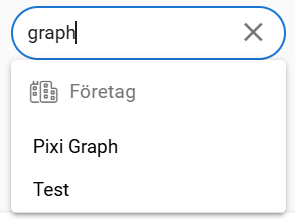
However, because the search is a combination of begins and contains, companies called PixiGraph and DesignGraphics would not be found. Nothing there begins with the word graph since the graph is in the middle. Also, if the separator of the word is a special character, it must be written in the search as well. For example, if the company searched is Pixi-Graph, it will be found by spelling anything beginning with Pi (two-letter search minimum), but nothing else, because the special character “-” is considered a part of the word. However, when the separator is space, the company Pixi Graph can be found in searches starting with Pi and Gr, because there are two separate words that search takes into account when searching with the beginning of the word.
Filtering the search
When the search is completed by pressing enter or the magnifying glass, the user gets all the search results on one page. On this page, the search bar is first on the page and below it is a drop-down menu that the user can use to filter the results. By filtering the search, the search results can be limited to one or more parts of the site instead of the whole site.
The display order of the search results
The system scores the search results according to predefined criteria. The more points a result receives, the higher it ranks in the search results. The scoring is influenced both by the module of the entity and by the number of times the searched item appears in the fields of the entity card. Row-level fields are not taken into account in the scoring. If the intention is to search for results in a particular module, go to that module first so that the search engine will rank the results for that module at the top. If the search is made on the front page of the system, the results of the contact and account modules will be displayed at the top. After the modules, the search results are scored according to the field in which the information is located. Information in fields of the name/subject type will be given a higher weight than information in other fields. After this, the system counts the number of times the search word appears on the card for that entity, excluding the row-level fields.
Frequently Asked Questions
How do I start a search on the site?
A text box is used to enter the information you want to search for. This field is located in the top right-hand corner of the page. Enter your search term and press Enter or the magnifying glass icon.
What kind of search logic does the system have?
The system’s search engine uses a combination of the terms ”starts” and ”contains”. This means that fields containing words that start with the same letters as the search term are returned. This includes entity names and basic fields, but not line-level fields.
How does the system display search results?
When a search is performed, the search results are immediately displayed in a drop-down menu below the search bar. The search results can be narrowed down and filtered into different parts of the system on the final search results page.
How is the order of search results determined?
Search results are scored according to pre-defined criteria. The scoring is determined by the module from which the result comes and the number of times the searched word appears in the entity’s basic fields. In the order of a module, the results are ranked first from the results of that module.
How can I filter the search results?
Once you have all the search results displayed, you can use the filter menu that appears below the search bar on the search results page. This allows you to limit the results to a specific part of the site.
Take the Quiz
Glossary
- Entity name
- The name of an object or record in the CRM system, such as a company or contact.
- Keyword
- The term or phrase that a user types into the search bar to find specific information.
- Scoring
- A method of ranking search results based on predefined criteria, such as frequency of the keyword in the entity’s basic fields.
- Search Bar
- A text field where users enter keywords to perform a search, accompanied by a search icon (magnifying glass).
- Search Results
- The list of items that match the keywords entered in the search bar.
- Separator
- A character used to divide words, such as space or special characters (e.g., hyphens), that can affect how searches are conducted.
- Site-wide Search Engine
- A search tool that allows users to search across the entire website or system.