
General
CRM-service provides a tool for event management called Mass Events. The tool is used in cooperation with contacts (the attendees), surveys, e-mail templates, and invoices. Custom fields, dynamic fields, formulas, workflows, reports, etc. standard functionalities apply also to the mass-event module.
Registration form is available in the following types:
- Form in Self-Service Portal for registered users
- Customers can use custom integration from their website provider
Note
Start
The new event is created in the Mass Events module, and when creating the event, at least the information on the fields that are set as mandatory in the system settings is added.
Quick Start Guide
- Star by pressing New.
- Enter the necessary information in the basic fields.
- Enter the desired additional information.
- Start managing the event and add optional parts like survey and subevents when necessary.
Fields
This guide focuses on advanced use of these entities. To learn more about how entities behave in CRM in general, see the basic guide for entities.
The event name and description fields are used to share info about the event with the public. Next, we explain some common fields used in mass events.
Basic Fields
- Event No. – This is automatically generated by the system
- Name – The desired name for the event
- Assigned to – Who is responsible for the event. Responsibility does not have to lie with the event creator.
Times
- Event Starts – The date and time of the event start
- Event Ends – Date and time of event end
- Registration Start – The first possible time people can register themselves to the event.
- Registration Ends – This is the last possible registration date.
Event types
- Need Registration: Contact needs to fill out the form and register themselves as attendees to the event
- Open: Will be visible on the listings of upcoming events in the Self-Service portal or on Event-listing but do not contain the form.
- Invitation Only: Generates registration form, but won’t be shown on Self-Service Portal or on Event-listings. Link to the registration form can be delivered as an email to selected contacts.
Dates
- Event starts and Event ends are date and time fields and indicate the time period when the event takes place
- Registration starts and Registration ends are date and time fields and indicate when the event will be shown on the listings and when people can register themselves.
Capacity
- Capacity is how many in total can attend this event
- The spare place is how many people will be taken to queue and added to the event automatically if one participant is canceled from the event.
Product and pricing
- On a product field, the product chosen will be also on the invoice.
- The price of the event will be the unit price of the product and the tax percent of the product
Other optional fields
- Header image is a field where a photo can be set and that photo is used on the registration form to brand the event.
- Location is the selection field of the spaces module
Sub-events
One event can contain multiple sub-events and sub-events can have their own capacity and price. The capacity of the subevent can’t be more than the capacity of the whole event. The selected product will be added to the price of the total event.
The number of participants in the sub-event may not exceed the number of participants in the main event. The system calculates the maximum number of participants from the number of participants in the main event, so if, for example, the number of participants in the main event is 100 and the number of participants in the sub-event is 150, only 100 people can register in the sub-event.
Example
There is a trade fair in the city. Participation in the fair is free, but there are three different sub-events in which registrants can participate:
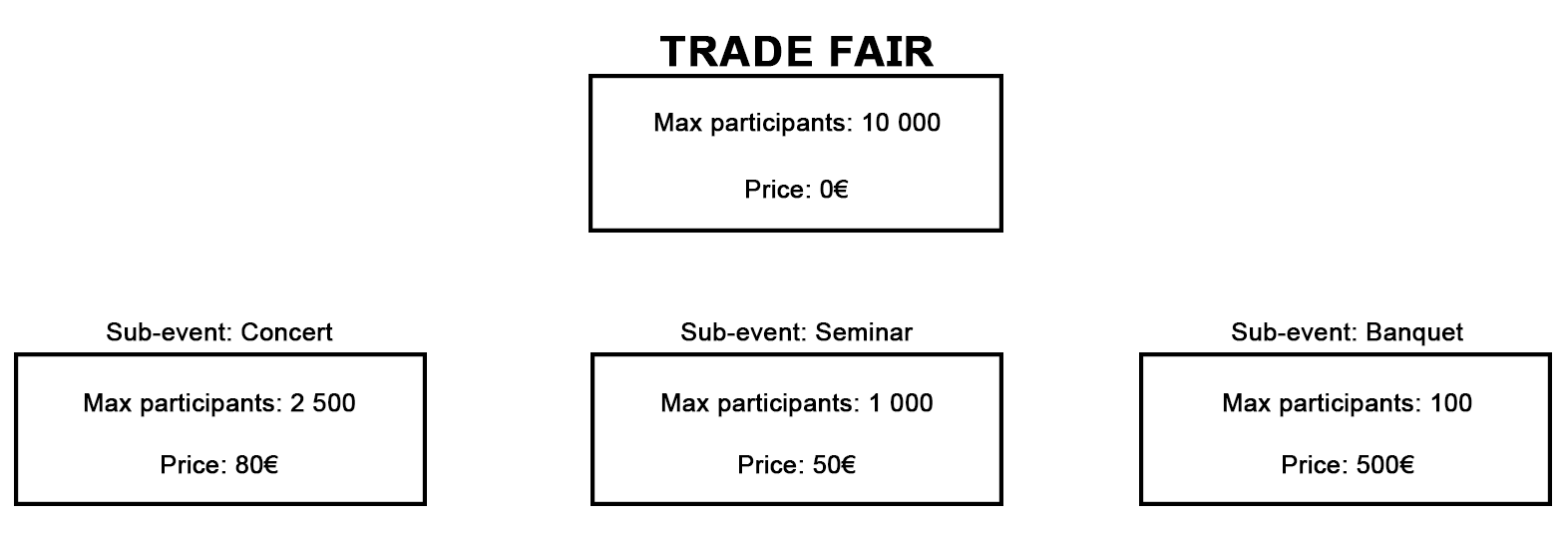
If the person does not want to participate in the sub-events, they will not be charged anything in this example case. If a person wants to participate, for example, only in a concert, they will be charged 80€. Participants in the concert and seminar will be charged 130€, and participants in all three sub-events will be charged 630€. However, only a certain number of people can participate in the sub-events, so not all those participating in the fair can register for all the sub-events. For example, the first 100 fair guests who register can get to the dinner if they choose to do so.
Registration form, Mass-event survey
From the tool button there is a link to managing the form (survey) for registration, note that this is not needed if the event type is open. The survey needs to contain Firstname, Lastname, and email if the registration is open to the public. The registration form can contain questions that are needed from the contacts and all answers will be saved under the contact module and the answers tab on mass-events and has an Excel export possibility. From time to time the answers contain data that is under the GDPR regulation information that needs to be deleted after the event. We have manual or automatic ways to delete the answers but keep the info of all contacts who attended the event. Learn how to create survey forms: Mass Event Surveys.
Triggers
Triggers are pinpoints when there is a need to send e-mail to the attendee or to the staff. E-mails are ready-made e-mail templates in the CRM that can contain tags from the event. With tags, there is no need to create an e-mail for all events since the tag will use example the event name, starting time, and fields that are added to the mass event or on the contact modules.
Triggers can be set up for attendees or staff by role, different e-mails to sub-events, and so on…
- Learn here how to use the triggers: Mass event triggers
Staff
This listing is for manually upkeeping the contacts that are participating in the event as staff like speakers, hosts, etc. These contacts won’t be counted in the capacity. This is an optional feature and helps out when organizing large events.
Invoicing
The billing date is automatically set by the system if the system’s invoicing tool is used. In the Self-Service Portal, Paytrail business customers can invoice participants directly at the time of registration. However, invoicing can also be done manually or via integration if other invoicing methods are used.
Read more about invoicing for mass events in the guide Invoicing Mass Events.
Registrations
All registrations are listed under the registration -tab. First, all is shown and then the list can be filtered to sub-event registrations only. Also, the cancelations and spare place queue are on this tab. Contacts will be automatically updated here when registering themselves via a registration survey or by custom integration. Also adding contacts manually is possible then the same questions are asked that the contact should have filled out.
If you add contacts to a mass event via the ‘Registrations’ tab in the CRM module, you can skip filling out the survey and add several contacts to the event at the same time. However, if the mass event survey contains important questions for the successful execution of the event, add the contacts one by one and fill out the survey separately for each contact.
The registration list shows all the basic information about the registrants and gives the user various tools to manage the registration (see picture below).
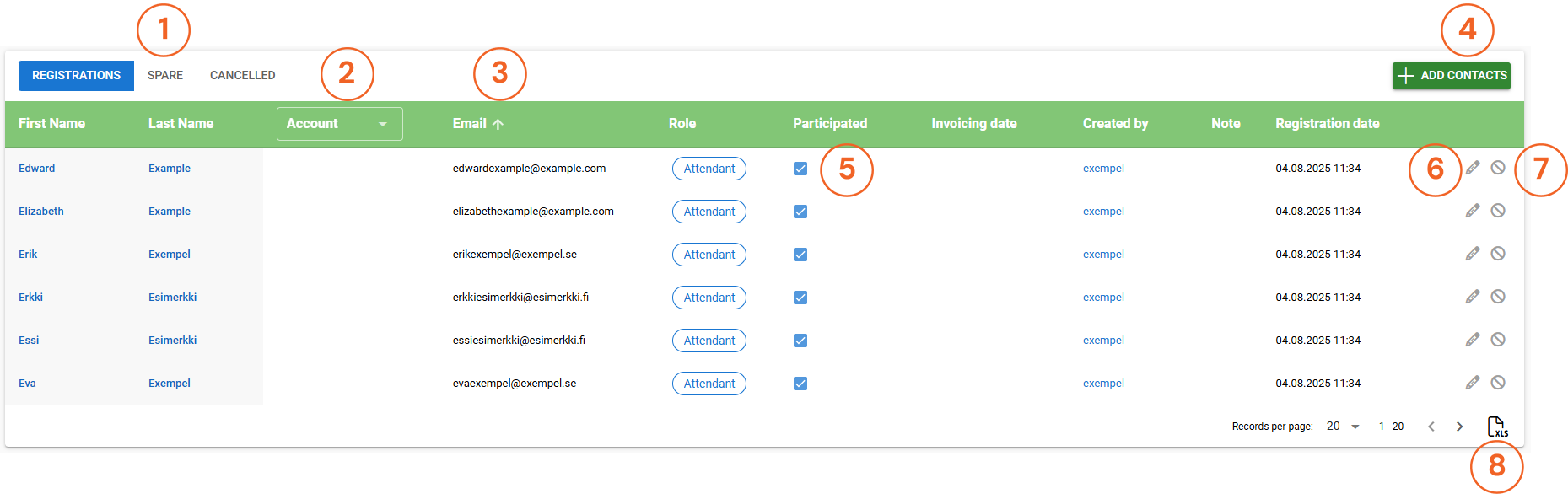
- Registrations – Spare – Cancelled tabs can be used to check registrants based on their current status.
- The picklist can be used to filter the list of registrants based on which Account the registrant belongs to. If no selection is made, all participants will be displayed and the No Value option will show enrollees who do not have an Account relation.
- The up/down arrow is used to sort the list of registrants based on the information in the desired column.
- The Participated checkbox is checked automatically. This makes it easier to manage the number of attendees, as in most cases there are fewer people who are not attending and these can be manually edited by editing the wanted participant (pen icon)
- The Add Contacts button allows the user to manually register attendees to the event.
- Editing the registration data is done with the pencil button.
- The No button is used to cancel the registration.
- XLS button can be used to export registrant information in the Excel-format.
Group Registration
For events where group registration is selected as the registration type, it is possible for one person to register more than one person at the same time. The group will be registered for the event only if there is enough room in the event for the whole group.
There are two different types of group registration. Type is defined in the mass event settings. In the case of mass registration by amount, it is not necessary to fill in the information of the participants in advance, but only the number of participants. In the case of registration by name, the data of the participants must be filled in at the time of registration.
For mass events that allow group registration, you will be asked at the beginning of registration how many people you want to register for the event.
When registering a group, the registrant must fill in their contact details on the provided form. he registrant can either participate in the event or indicate that they will not participate, in which case only those who have registered as participants will be registered to the mass event. If the group registrant wishes to participate in the event, they must fill in both the contact details and the participant details.
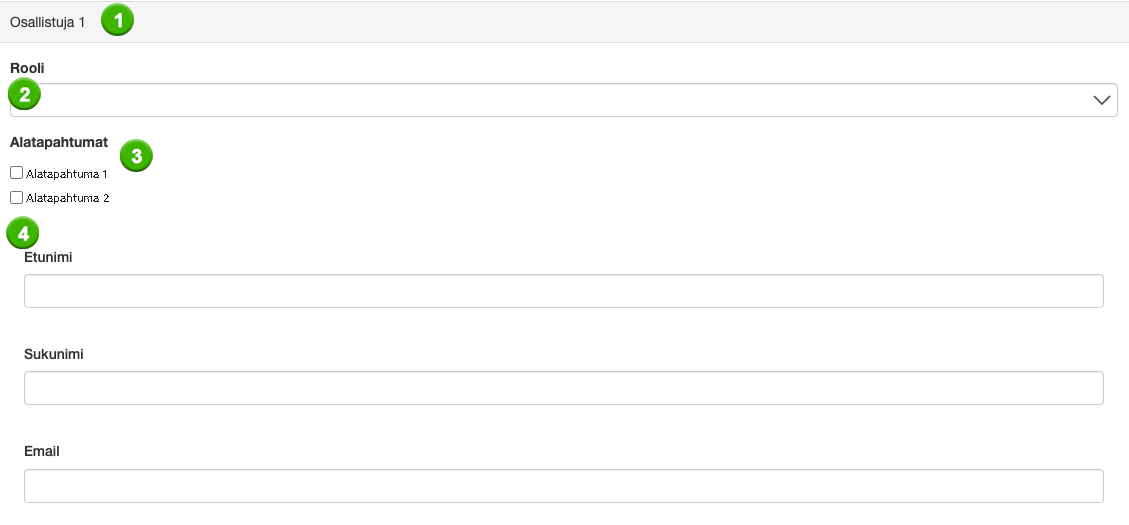
The example in the picture demonstrates how each participant’s details need to be filled in separately (1). For each participant, the role of the participant (2), any sub-events in which the person is participating (3) and the basic information about the registrant (4) must be provided. If a survey has been added to the mass event, the registrant must answer it on behalf of the participant.
Persons who are registered for an event will see the registration in their own portal. In addition to this, the portal will also show who registered them for the event.