
General
Workflows can be used to automatize several actions in modules. Workflows are triggered by changes made in the target module’s fields – e.g. when a potential’s stage is changed to ‘won’ or when a customer’s assigned user has been changed. When triggered, the workflow can for instance send an email, create an activity, run a wanted module tool, or possibly invoke a custom function.
When workflows are combined with dynamic field formulas, it is also possible to Update information to linked and current entity by either updating or copying wanted values.
Managing Workflows
You can add, edit and delete workflows in Settings → Workflows. These settings can also be accessed through module’s own settings.
In the main view you can see all the workflows in all the modules. The workflows can be filtered by module by selecting a module on the picklist on the top right corner. The existing workflows can be edited and deleted with the buttons in the Tools column and create a new one by clicking the New Workflow button.
When creating a new workflow you’ll need to first select the module where it is created. You can also use a template, if an earlier workflow has been saved as a template (in edit view, there is a Save as Template button for this). In the next view the name and the time the workflow task is run are determined. The options for the time the task is run are the following:
- Only on first save – The task is run when the entity is created and only once.
- The first time all the conditions are met – The task is run only once when all the conditions are met (if the same entity meets the conditions again later, the task will not be run).
- Every time the record is saved – The task is run on every save while all the conditions are met.
Next, you can determine conditions for when the workflow is run. A new condition is created by clicking the New Condition button and then you can determine a field (either from the module the workflow is in or from a module linked to it), an operator and a value for it. An unnecessary condition can be deleted later with the delete button on the end of the row. The relation between the conditions is always AND. This means that all the conditions need to be met for the workflow to take action.
When the conditions are ready, the workflow must be saved with the Save button in the top right corner. The view then updates and a new section Tasks appears below the conditions. In this section, the functions of the workflow are determined. A new function is created by clicking the New Task button and selecting a function type. A workflow can have multiple functions. All of these functions do not necessarily need to be active at the same time, but the status of the function determines whether the function is run with the workflow or not.
Invoke Custom Function
This function executes a customer and module-specific method created by the system provider. The function is selected in the Method name picklist. In most cases this picklist is empty and instead the text “No method is available for this module” is shown.
Create Todo / Create Event
These functions create an activity. The determined fields vary a little by the activity – both todos and events require a task title and status in the summary section and a name, description and status. An event requires in addition an event type, start and end dates and times, whereas a todo needs a priority, due date and you can also choose to set notification sending on.
Run module tool
This function runs the selected module tool when the conditions of the workflow are met. This functionality is meant to be used for doing and running tasks meant to be executed purely in the background.
Please note that only some of the module tools are available here. So all module tool types do not work with Run module tool workflow, and thus the user will not be able to select them. Types of module tools that can be selected using Run module tool workflow are:
- Create entity
- Notify user
- Run HTTPS request
Send email
This function creates a new email to the target group defined in the recipient field. In the recipient and body fields it is possible to use tags, which can be added from the picklists next to/above these fields.
Workflow timing
The system offers three types of workflow timing: Instant, Execute the task after some delay, and Execute in background. From these options, the Instant is the most straightforward option, and it means that the workflow is executed as soon as its requirements are met.
Execute the task after some delay
The delay for these tasks is measured in days, with a minimum of one (1) day. This option gives the user the option to set the run of the function to happen after a certain time. The delay is always in days, but you can determine the number of days and from which time stamp of the workflow it is calculated. Note, that along with this function, the condition #CURRENT_USER reacts as an admin user.
Execute in background
Background workflows are intended for time-consuming tasks, such as REST HTTPS requests. They can also be used for tasks that require a specific delay. Examples of these situations are when an invoice is created from a sales order at the same time the sales order is created or a new invoice with rows is created by changing invoice status/type. The delay for these tasks ranges from instant to 10 minutes.
When calculating the needed delay, there is a need to take a few things into account. So, for example, if the system already has large amounts of processes like workflows going on, or the users internet speed is slow, there might be a need for a bigger delay. While most of the workflows can be performed with a five-second delay, if you are uncertain set it up to be as high as ten minutes if necessary.
Workflow Template
If you want to create a similar workflow that you already have, you can save the existing one as a template and use it for the new one. Saving as a template is done by entering the edit mode of the existing workflow, clicking the Save as Template button and determining a name for the template. After this the template can be used when creating a new workflow. Note, that the template can be used only in the same module that the original workflow was in. Therefore it is not possible this way to copy a workflow from one module to another.
Outlook synchronisation workflow
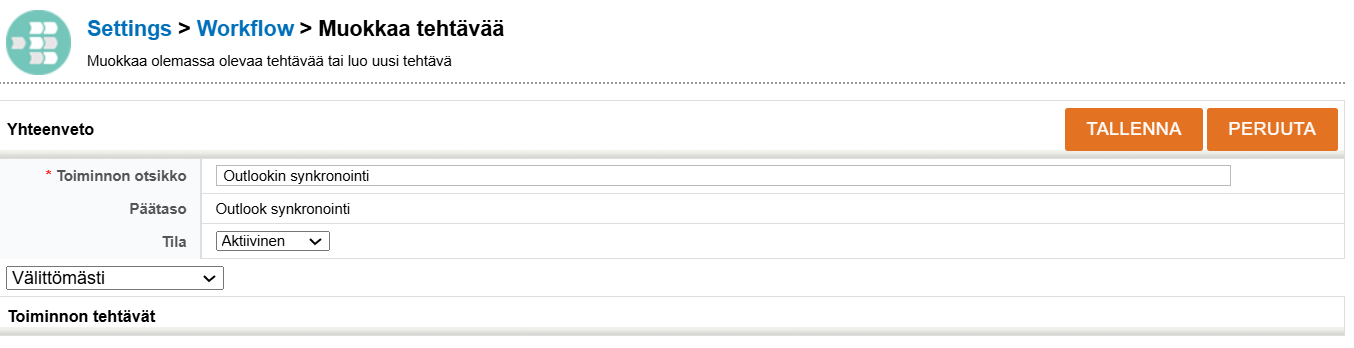
For Outlook synchronization, a workflow is required, which is created in Calendar Events. Select New Workflow from the Workflow menu and select Events as the module, or alternatively go to Calendar via the Module Manager and select the Workflow list (Events) from there. Give the workflow a name and add the task Outlook Calendar Sync to it, and the workflow is complete. The task is not given any special settings, but is allowed to run with the settings automatically set for it by the system (see picture below).
Automations with workflows
- You can create automatically updating email campaigns.
- You can have automations that can be used for managing portal users.
- You can also Update Information to Linked and Current Entity.
Workflows – Frequently Asked Questions
What are workflows?
Workflows are automated actions triggered by changes in a module’s fields, such as when a status is changed or an assigned user is modified. They can perform various tasks, including sending emails, creating activities, running module tools, or invoking custom functions.
How do I manage workflows?
You can manage workflows through Settings → Workflows or directly from a module’s settings. You can add, edit, or delete workflows and filter them by module.
How do I create a new workflow?
To create a new workflow, select the module for the workflow, decide on a name, choose the timing for the task (e.g., run it only on the first save or every time the record is saved), and set conditions for when the workflow should trigger.
How do conditions work in workflows?
Conditions in workflows are defined using fields, operators, and values. All conditions must be met for the workflow to execute, and you can create or delete conditions as needed.
What is a workflow template?
A workflow template allows you to save an existing workflow for reuse. You can only use templates within the same module and cannot transfer them across different modules.
How can I access the list of all workflows?
The main view provides a list of all workflows across all modules. You can filter the view by selecting a specific module from the picklist available at the top right corner.
Take the Quiz
Glossary
- Module
- A component of the system that organizes specific functions and data types. Each module can have its own sharing rules and permissions.
- Workflow
- General term used to describe automated actions in modules that work through trigger-based rules.