
General
A person registering to a mass event, can be presented with a registration form, that can be used to collect all the needed information from each registrated person right away.
The registration form is unique for each mass event, so the questions and types of questions can be alternated when needed. If registrations are gathered from logged-in users from the self-service portal, and with a public registration form, can a part of the questions (e.g. name information) be left out of the form. This can be done from the logged-in users, if the information is already acknowledged.
Creating and Editing the Survey
Questions for the registration form can be defined, and later edited with first opening the mass event card, and by clicking the Actions-button, and by choosing Add / Update survey (see the picture below).
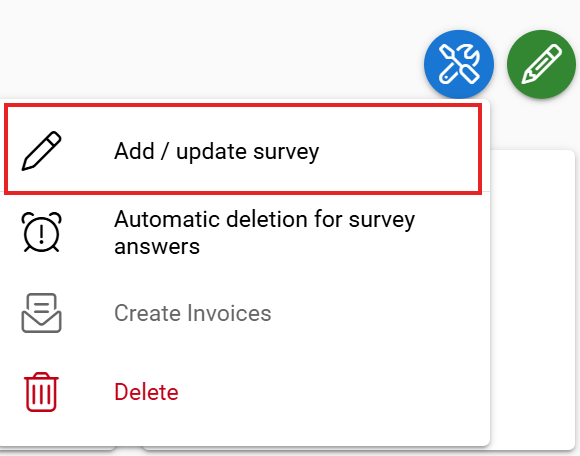
By default the registration doesn’t have any form fields, so also the survey will be empty.
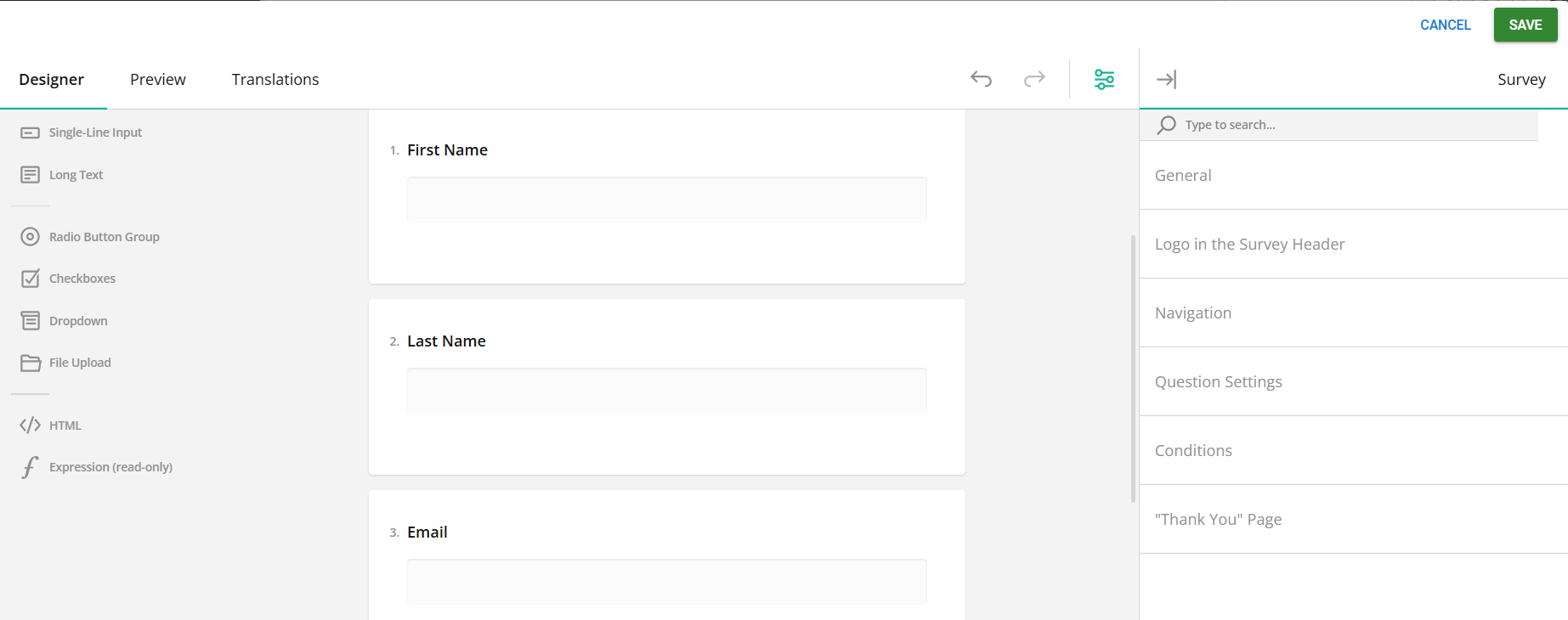
The registration form is built in the middle of the view, and new questions can be added from the panel on the left side. First, you pick the suitable question type and add it to the survey. In the example picture below, we ask for first and last name plus email address because these are required fields when creating an open registration form.
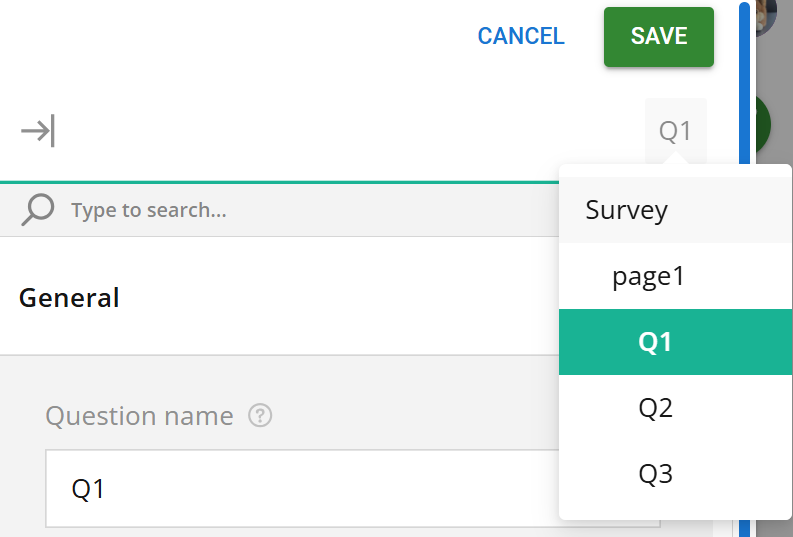
Settings for the added questions can be found by clicking the desired question or selecting it from a settings picklist located at the top right corner of the settings panel (see picture below).
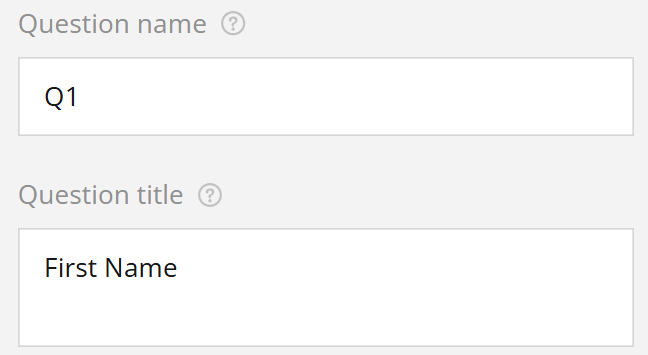
It’s also recommended to define all the information needed for the questions via the settings so that the reporting of answers is as clear as possible. For example, the question’s title is preferably written in the settings on the Name field, so that it looks the same way in reporting. The name and title can be different, but the question name is what the users see when analysing the answers, so it is preferred to change the default which is just a Q + number of the question (see picture below).
If registration to an event is possible through a public registration form, the first name, last name, and email questions are required to connect to the corresponding fields with CRM’s contacts. This is to make sure that, if the person doesn’t get found from CRM’s contacts by email address, then a new contact is created, and the name- and email information is connected to the correct fields.
The registration form will not be available unless they have CRM Connect Fields: First Name, Last Name and Email address. For registration forms in Self-Service Portal the end date for registering for the event must be stated.
Connecting the question to the right field in CRM is made in the questions properties, in the CRM Connect Field (see the picture below).
Pay attention to the field types, if the field type does not match the field type in the CRM, this can cause errors in the registration form. So to ensure the registration form runs smoothly, please check that the types match (email to email, number to number, etc).
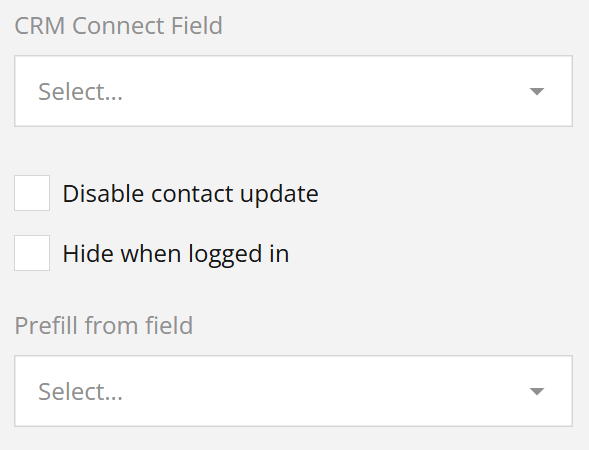
Below the CRM Connect Field setting, there is also a setting called Hide when logged in, which can be used to hide a question, if the registration is made logged in in the Self-Service Portal. This is to make sure that if a user is logged in, they don’t have to fill in information that is already acknowledged.
Similar result can also be achieved by using the Pre-fill from field option, which pre-fills the answer for the user, but instead of being hidden it is a regular question, and the user can change the prefilled answer.
When Pre-fill from field option is used, it only pre-fills information if person is logged in the Self-Service Portal. However, pre-fill from field option is not available on group registrations.
Disable contact update
When the Disable contact update option is active, the answers given on the form will not overwrite the information in existing contacts. When this option is enabled, answers to questions will not change or add information to existing contacts, but will only add the information entered in these fields to any new contacts.
Example
The registration form contains questions for First name, Last name, and Street address. The CRM Connect Field option has been selected for each field, and the Disable contact update option has been selected for both names.
Two people, Edward and Elizabeth Example, register for the event, and Edward is already a contact in the system. Regardless of what Edwards enters for his names, he will still be Edward Example in the system. However, Edward can change his street address to Example Street even if he previously lived on Example Road. Elizabeth cannot be found in the system, so when she fills in the form, the system creates a new contact card and fills in her name and address based on the answers she provides.
CRM Connect Field and Group Registration
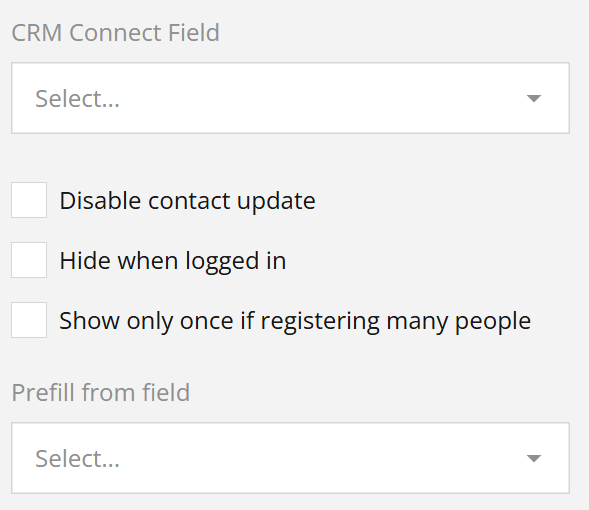
If the mass event registration type is group registration, the option “Show only once if many people register” is also available. This means that, for example, billing information can only be requested once from the person making the registration (see picture below).
NOTE!
Do not use the “Show only once if registering many people” with the mandatory fields First name, Last name, and Email address, as activating this option will hide the registration form.
Checkboxes and CRM Connect Field
In the case of checkboxes, the CRM Connect Field feature can be used as both a question type and a checkbox or radio button group. This is because the checkbox in the CRM system listens for the values 1 (selected) and 0 (not selected) instead of traditional values.
If you want to use a checkbox with CRM Connect Field, you must use only one selection with the value 1, and the question must not be set as mandatory. The question can be pre-filled from the desired field, in which case it will show the respondent their previous selection, if available.
Example of a radio button group:
If we want to collect information in an event survey about whether registrants want to join the event mailing list, we could do this with the following selections:
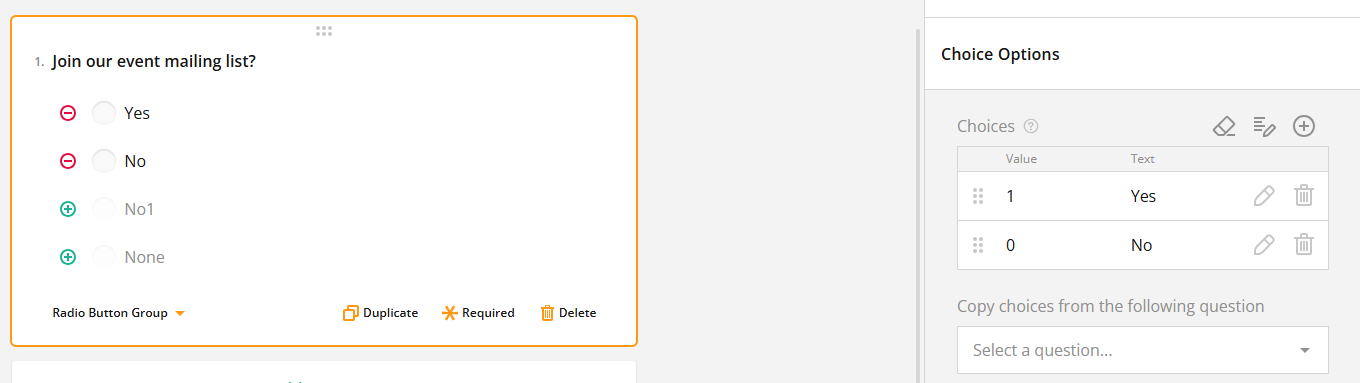
The answer Yes is given the value 1 and the answer No is given the value 0. With these values, a Yes answer will place a check mark in the desired selection box for the contact, while a No answer will leave the box empty. The answer to a radio button group cannot be pre-filled, but the question can be made mandatory if desired.
Example of a selection box:
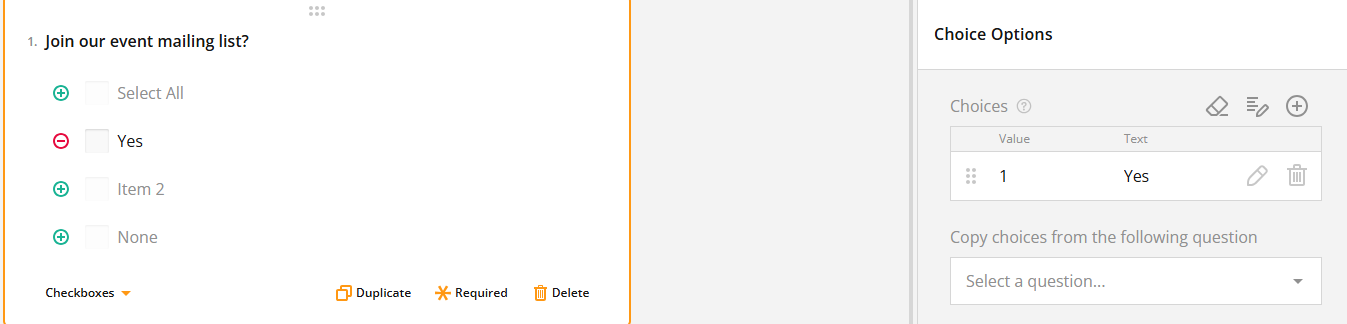
Another way to ask about joining a mailing list, for example, is to use a checkbox where the respondent is given only one answer option. This option must have a value of 1, meaning that when the respondent selects the box, the selection is also transferred to the CRM system. The selection can be pre-filled from the corresponding field in the system; in which case the respondent will see the selection currently stored in the system when answering the question. Questions with only one answer option cannot be made mandatory.
Multiple choice lists and CRM Connect Field
Survey responses are combined into a multiple-choice list using the checkbox question type, as this is the only question type that allows multiple simultaneous answer options.
Example
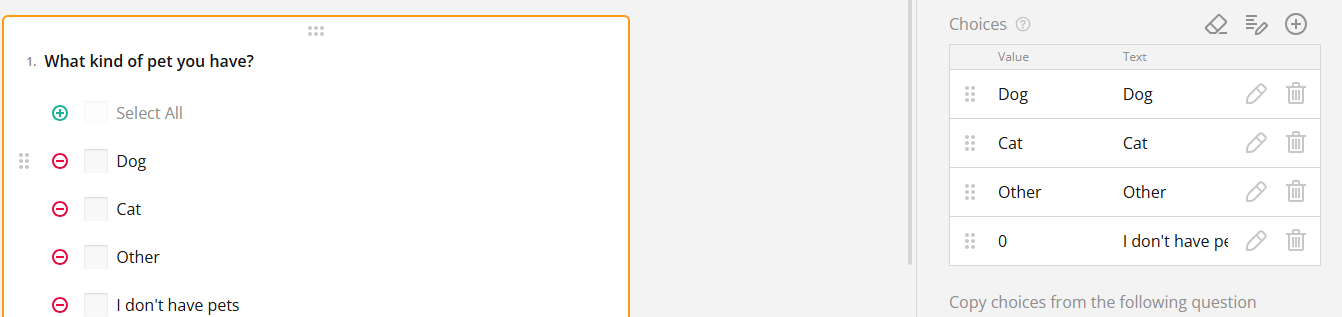
We want to know what kind of pets the respondents have, but we also know that there may be several different pets in the same household. We can therefore create a checkbox question in the survey, which is linked to a multiple-choice list in the CRM system. The values of the answer options must correspond to the values in the selection list. This question type cannot be pre-filled on the form; by default, all answer options are unselected.
If a multiple-choice list is used in CRM Connect Field, it is recommended that the question be made mandatory. Leaving the question unanswered will automatically clear the values in the multiple-choice list, so making it mandatory prevents the options from being accidentally cleared. If necessary, you can set the answer value 0 as an answer option for the question, which will clear the values in the multiple-choice list (picture below).
Deleting the Answers after The Event
If the registration form collects information that is not permitted to be kept after the end of the event due the GDPR, you should also pay attention to deleting the answers. It is possible to manually delete the answers on the mass event’s Answers tab, or you can schedule them to be deleted automatically after a certain time has passed since the end of the event. For more information about the automatic deletion, see Automatic Deletion of Mass Event’s Survey Answers.