
General
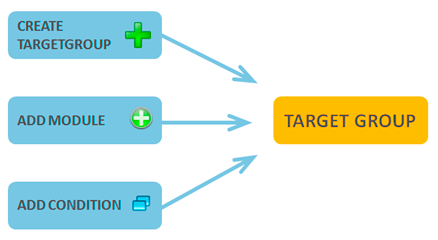
By using target groups you can generate company and personal groups for email marketing, telephone contacting and so on. You can create several different target groups for each need.
Creating a Target Group
To create a target group, you first need to determine the basic information of the group. The creation starts by clicking the Create TargetGroup button.
You will need to fill in the following information:
- Target Group Name
- Target Group Number
- Type
- The status of the target group in the field Public. The status can be set to No, Yes (read) or Yes (write) depending on what kind of modifying access you want others to have in this target group
- Is the group is active
- The person assigned to this group.
After saving the information of the target group is shown and it is now possible for you to add conditions related to this group in the Conditions tab.
Searching for Content
To add conditions to the target group you must first determine the modules you want to use as the source for the conditions in the section Module relations. The modules Accounts and Contacts are linked by default, but the link can be removed if needed. With the Add module button in the module relations you can add the wanted groups. With the Link function the modules added can be connected to each other to create a relation. The Add linked module function shows a list of suggested modules to link to the original module.
If you want the target group to include only a smaller sample of the contacts chosen, you can add a module relation of Functions to Contacts and add conditions of Sample interval or Simple random sampling.
To be able to see the content of the target group in the summary, you must update the summary with Update with current conditions button in the Actions section. At this point the target group is generated only by the module relations (no conditions have been added yet).
Adding Conditions
You can create a new condition by clicking the Add condition button at the bottom left corner. The following fields need to be filled for the condition:
- In the Module field you select the module which has the information needed
- Use the Module fields table to determine the field in the module which is searched for the certain value(s). After this you can determine the condition and value(s). If the type of the chosen field is “Select”, you can choose the picklist’s value(s) using the Magnifying glass icon that appears next to the Value(s) field
- In the Condition field you determine the operator (greater than, less than, equals…)
- In the Value(s) field you determine which value(s) is/are searched for in the field. If you want to add multiple values into the same condition, separate the values using the character |.
Conditions of the Function module:
- Sample interval makes a sample which includes only the entities that are a certain interval apart from each other (e.g. every third entity). The sample interval is set in the Value(s) field.
- Simple random sampling goes through all the entities and includes every one of them in the sample with the same given probability (e.g. each entity has a probability of 80% to be included in the sample). The sampling ignores possible relations between the entities.
The target group can be formed using multiple conditions. When you create more conditions using the Add condition button, the relation between the conditions is always in AND format. If you want the conditions to be exclusive (in OR format), you can create a new condition by clicking the Add OR condition icon on an existing condition with which you want the new condition to be in OR relation.
When you have created all the conditions needed, click Clear the target group entities and then Update with current conditions to get an updated summary.
NB. The condition can only be created with the information included in the modules selected in the module relations.
Target Group’s Actions
When you have created all the wanted conditions and the target group is ready and updated, you can export the information in Excel and CSV formats. While exporting the information you will always choose between a list of Accounts or Contacts.
With ready-made functions you can remove duplicate emails, remove contacts that opted out, remove accounts without contacts, add/remove other target group and add/remove site visitors.
You can also create activities with the target group – for more information, see Creating Activities for a User with Automation.
More Information tab
On the More Information tab you can examine what changes have been done inside the Target Group in the section History. You can also examine the contacts or accounts of the target group.
Examples of usage
- Retrieve customers without contacts
First, create target group A containing all customers and contacts. Then create target group B containing all customers. On the Conditions tab of target group B, use the Add/remove another target group function, select group A from the list, and choose Remove. This removes customers with contacts from group B.
The same function can also be used to merge target groups. - Retrieve customers of a specific account manager whose data has not been updated since 2012
Set the first condition as the account manager’s name in the Customer Responsibility field, e.g., Valtteri Account Manager. Add a second condition: Modified is less than 1/1/2013. Since both conditions must be met, they are linked with AND. - Identify which customers were contacted before 1/1/2013
Select the Customers and Activities modules and link them together. Create a condition for the Activities module: Less than 1/1/2013. Update the target group based on the conditions. - Retrieve contacts whose billing date is within the last 10 days
Select the Contacts and Invoices modules and link them (note: in some systems the invoice may relate only to the customer). Create a condition for the billing date. Instead of exact dates, you can also use automatic time periods such as:
-10 day, -10 week, -10 month, -10 year
or alternatively
10 day, 10 week, 10 month, 10 year. - Retrieve contacts whose birthday is today
Use the Birthday field and set the condition Same day with the value Oday. This condition checks only day and month, not the year, so it works for annually recurring target groups - Use another target group’s data as a condition
You can include or exclude another target group’s data using the Functions module. You can also choose whether the referenced group updates automatically (dynamic) or only uses its current data (static).
Example: If you have a target group of contacts whose invoice due date was within the last 10 days, you can create a new target group and add the condition Includes that earlier group. At the same time, you can add a condition requiring an email address. This way you could create an activity, such as sending a survey about the need for a payment plan.