
General
Emails you send can also be synced to the CRM by adding your personal sync address to the CC field of the message. This way, the email is sent both to the recipient and to the CRM at the same time.
Activating Email Sync
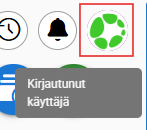
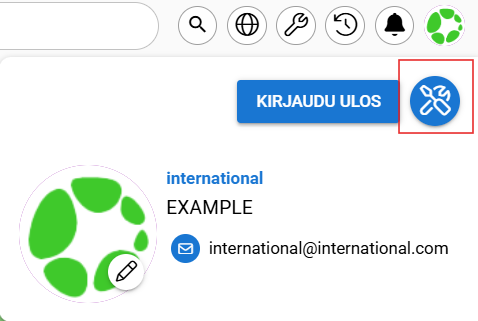
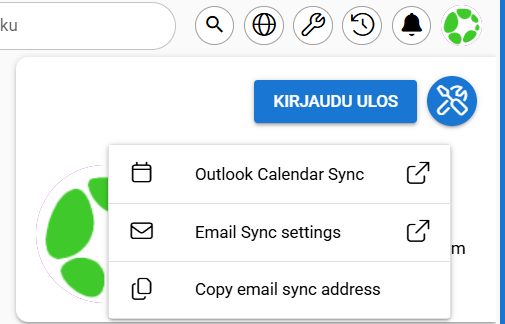
- Click your user icon in the top-right corner and open Settings.
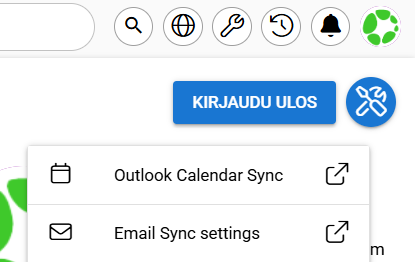
- Click Email Sync Settings to access the settings.
- Activate the function by selecting the Active checkbox.
- Copy your personal email sync address and use it as a CC address.
Using Email Sync
- Create or reply to an email normally in your email application.
- Add the copied sync address to the CC field of the message.
- Send the email.
You can retrieve the sync address at any time from user settings, where the Copy email sync address button is available directly in the settings view.
Viewing Synced Emails in CRM
After the email is sent, it is automatically saved to the CRM and can be found in the Emails module. Emails synced via the personal CC address are automatically assigned to the user who owns the address.
Automatic Sync
Depending on your email provider, it may also be possible to automate adding the CC address using rules. These are configured according to your email service provider’s own instructions.
Quick-Guide with Images
- Choose user Icon
2. Select Settings
3. Select Email sync settings
4. Enable the Active checkbox. After this, the address can be copied and used in the CC field of your email application.
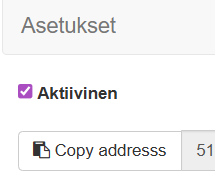
5. When sync is active, the Copy email sync address button allows you to quickly copy the address in the future.
Email Sync – Frequently Asked Questions
Why don’t replies always appear in the CRM?
When a recipient replies to an email, they can choose between Reply and Reply all. If the recipient does not select Reply all, the CC address will not receive the response, and therefore the email will not be saved to the CRM.