
General
It is possible to keep track of the quantity of your products by setting them stock tracked. When stock tracking is activated for a product, purchase orders will increase and sales orders or invoices decrease the amount of the product in stock.
Setting a Product Tracked
When the system has the required settings, products can be set stock tracked. This is done separately for every product, so all the products do not need to be tracked. If fields required for stock tracking are not visible, please contact your admin user.
First, select an existing product or create a new one by clicking the New button. In both cases, you should have the product in editing mode, and then determine the following information:
- Is Stock Tracked – When active, this checkbox sets the product stock tracked.
- Combined stock amount – This field is used to show the total amount of products in stock which the system calculates based on the stock tracking settings.
- Qty/Unit – If the product is a set of smaller parts (e.g. a set of four car tires), set the right quantity per unit. Since most of the products are sold separately, if left empty, the system will set the value of this field to 1. This is an optional field.
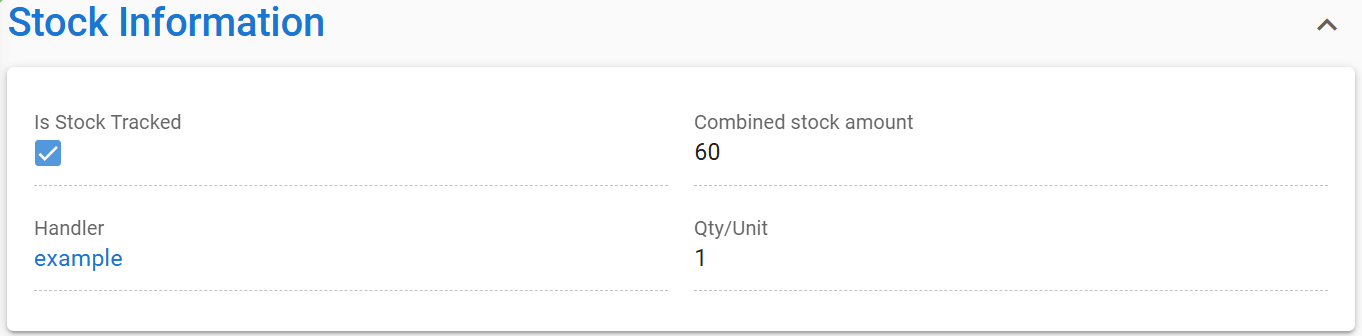
Increasing the Stock
The stock of the product can be increased in two different ways. In most cases, making a purchase order is recommended. The order is made in the Purchase Order module by clicking the New button and filling in the mandatory fields.
Purchase Order field Status needs to be in the desired position for the Stock Tracking to trigger. Desired status(es) are set by the admin user of the system.
When the stock-tracked product is added to the Purchase Order, the entered amount is then automatically added to the Combined stock amount when the Purchase Order is saved in desired status.
The second way to edit the stock is by going to the Properties tab of the product and adjusting the amount of product by using the Stock in warehouses functionality (see picture below).
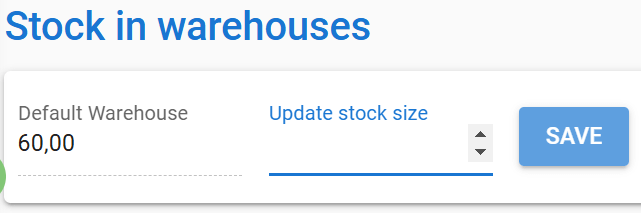
Generally status changes made by integrations do not affect the stock tracking and these changes must be entered in the system manually
Decreasing the Stock
Stock can be decreased manually by using the Stock in warehouses option described above. However, most often the stock is edited via Sales Order or Invoice. Since Sales Orders are often used to make invoices, it is not possible to use both to track the stock at the same time.
When stock tracked product is entered in the Sales Order or Invoice, they decrease the stock automatically when they reach the desired status.
Stock Tracking – Frequently Asked Questions
What is stock tracking?
Stock tracking allows you to monitor the quantity of your products. When activated, purchase orders will increase the stock, while sales orders and invoices will decrease it. Stock can also be adjusted manually.
Is the stock tracking a fully automated process?
After the stock tracking is set, the Sales Orders/Invoices/Purchase Orders affect the stock automatically. Changes to the number of products through integrations are not automatically recorded in the stock tracking. However, it is always possible to adjust the amount of stock manually if needed.
How do I set a product to be stock-tracked?
To set the product stock-tracked just activate the checkbox “Is stock tracked” from the entity card of the product.
Do I have to stock-track all my products?
No, stock tracking can be set for individual products. You can choose which products you want to track.
Can I adjust stock without a Purchase/Sales Order or Invoice?
Yes, you can always adjust the product’s stock amount by going to the properties tab of the product and using the Stock in warehouses option.