
General
The report generator can be used in cases where you want to find out if there are duplicates in your CRM system. In this guide, we will go step by step through how to search for duplicates using the report generator. The example is built to find duplicates of contacts based on email, but duplicates can be found using many different fields. It is worth remembering that regardless of the module, the Crmid of the record is always unique, so this field cannot be used to find duplicates.
From and Projection
The From tab determines the source module from which duplicates are being searched. In our example, we will select the Contacts module as the source. The Projections tab defines how duplicates are searched for and displayed in the report.
When searching for duplicates based on email, we make two different choices. First, we select Email with the Email title to list the email addresses found in the system. Next, we choose Email and use the Add Operator function button to see the number of times a specific email is found in the system.

Conditions
No special conditions are required to search for duplicates. However, conditions allow you to filter out unwanted information. In our example, if the system finds contacts with an empty email, you can filter them out with a condition such as the email must contain an @ sign. This will exclude empty fields and some non-valid emails from the list. Also, the condition email is not empty will filter out contacts for which no email has been saved.

Grouping and ordering
When searching for duplicates, the report is grouped according to the field used to search for duplicates. In our example, we group the report by the email. The Order by option is not mandatory for this report.

Finalising and interpreting the report
Everything needed to build a duplicate search report has been provided above, so all that is left is to name the report in the settings and then save it. Duplicates can be found by examining the report’s web view, but with large databases, the easiest way to find duplicates is to download the report as an Excel file and use the filter functions to find duplicates.
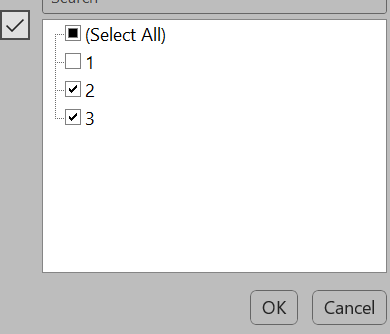
The downloaded report is opened in Excel, then select Data → Filter. Then select the down arrow in the header of the column showing the number of duplicates and deselect the number 1, and the filter will list all emails that are found in the system with more than one duplicate.
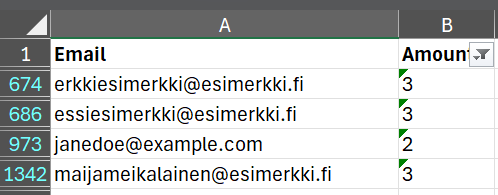
With the conditions given above, the Excel file loaded from the report would look like this in our example case:
Once the duplicates in the system have been identified, they can be removed from the system if necessary, or alternatively use Merge entity module tool which merges the desired data and removes the extra record at the end of the merge.