
General
The CSV file import function can be used to import structured data into the CRM system. The tool is suitable for both one-time imports and mass data updates. Imports can be carried out into several CRM modules, and the user can define whether new records are created, existing ones are updated, or both are done.
The tool is designed for data processing, which is why using the tool requires the user to understand data models.
Note. Data can also be exported from CRM Service into a CSV file by using the report generator.
About the CSV file format
The data imported into the CRM system in CSV format must be prepared by the customer, and the data must meet the following criteria:
- Each row in the CSV file contains consistent data and the same number of columns.
- There are no line breaks inside the file’s columns.
- All numeric values must be without thousand separators.
- The maximum number of characters in a single cell is 255 characters (Please note that a CRM field may have a smaller character limit. If the imported text is longer than the number of characters allowed by the field, the text will be truncated at the field’s character limit.)
- All numbers must use a period as the decimal separator.
- The file must use UTF-8 encoding.
- The file contains a header row describing the columns (not mandatory, but it makes the mapping process easier).
- Dates must be in the format yyyy-mm-dd
- Multi-select list values must be separated with the |##| delimiter. Note that there must be spaces on both sides of the delimiter (for example: Owner |##| Contact person |##| Other ).
- The field delimiter in CSV files is “,” (comma) (example below).
- “Company Ltd”,”Company Street 12″,”Turku”,”1787.19” ”,”358212121212”, …
To ensure CSV file compatibility, it is recommended to use CRM Service’s own CSV Add-in when saving files in Excel. Using the Add-in is easy: first prepare the file normally in Excel, and then save the file using the button on the Excel CSV tab (see image below).
The Excel CSV Add-in can be downloaded from the following link: ExcelCSVAddin (.zip). Note. The Add-in is only compatible with the Windows operating system.
Importer
Using the function requires:
- a CSV structure matching the correct module
- at least one identifier (matching field) if updates are being made (recommended also when importing data, because without matching fields duplicates can be created if the data already exists in the system)
- that each CSV field is either mapped to a CRM field or marked as “Ignore this field”
Next, we will go through how the importer that uses the REST interface works. Installing the program is easy: simply download it according to your operating system from the links below and follow the installer instructions.
CRM CSV-importer download (Windows)
CRM CSV-importer download (Mac)
If neither of the download links above is suitable for your operating system and you are using Windows/OSX ARM versions or Linux, you can find all available versions here: All CRM CSV-importer versions.
CSV to CRM -importer quick guide
Using the importer itself is based on the following steps:
- Open CSV Importer and log in to the CRM environment.
- Select the CSV file and review the basic and advanced settings.
- Select the module into which the data will be imported.
- Load the preview header and map all CSV fields to CRM fields.
- Select the import mode: create / update / create+update.
- Run a test import for one row.
- Run the actual import and check the log.
Login
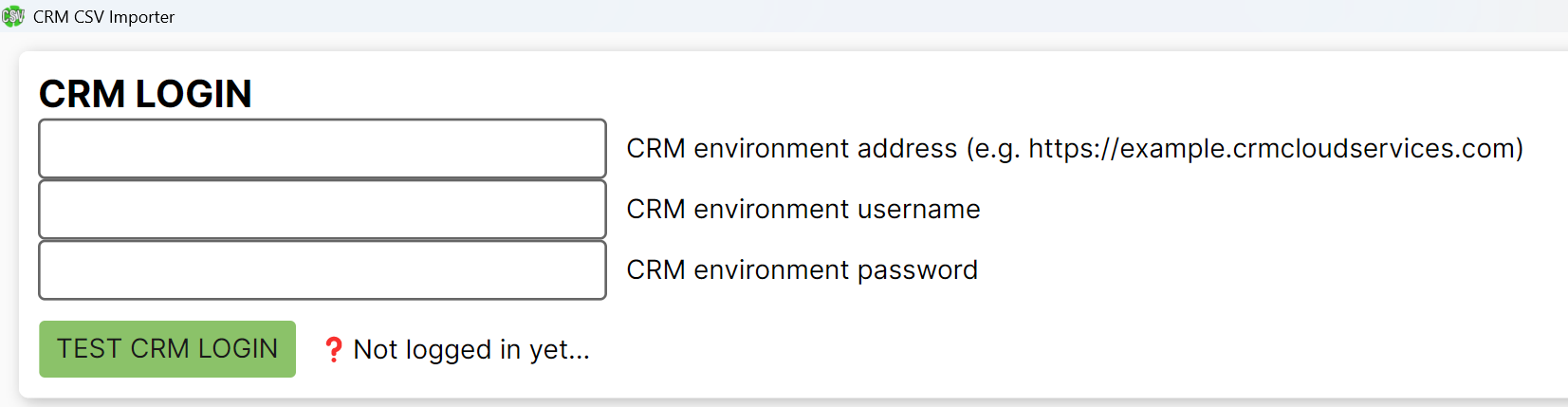
CRM address in the example format (including https://), username, and password. By pressing the Test CRM Login button, the user will receive information with a timestamp on whether the login was successful or unsuccessful.
Loading the CSV file
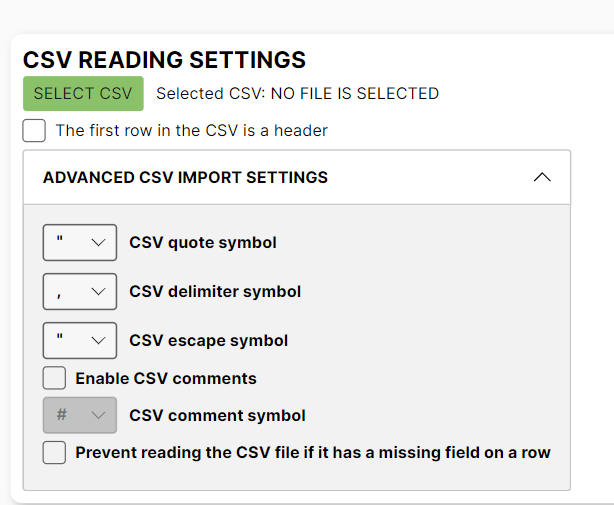
Select SELECT CSV and pick the file from your computer. Once the CSV has been selected:
- The file path is shown in the application
- The header row selection becomes available
- Advanced settings are available (delimiter, quote, escape, comments)
Module selection and preview
Select the module into which the CSV will be imported. Once the module has been selected, Reload import preview table header and Update Import preview table rows become available.
After loading the header, the preview table shows:
- CSV field names
- CRM field name selections (dropdown)
- The Update matching column selection
- The Advanced column settings section
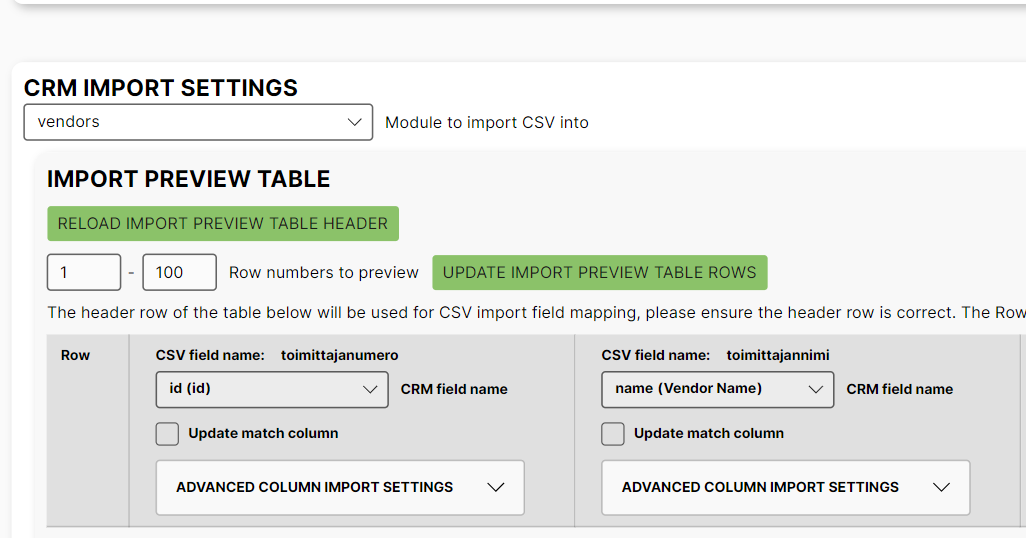
The number of preview rows can be selected (1–100).
The Update Import preview table rows button displays as many rows from the CSV file as the selected preview amount.
Field matching (mapping)
Each CSV column must be processed separately:
- If the CRM field value (note! Technical value, not the name visible in the system) matches the CSV header, the system automatically searches the system fields for the corresponding match.
- If no matching field is found for the value, select the CRM field from the dropdown menu.
- If the column is not needed, select Ignore this field.
Update Match Column:
- This selection is used to choose the matching field by which entities corresponding to the field data can be searched from the system. There can be several of these fields, in which case all of them must match for an update.
- In update mode, a match field is mandatory
- In create mode, it does not have to be used, but using it prevents possible duplicates if data that already exists in the system is being imported
Advanced column settings
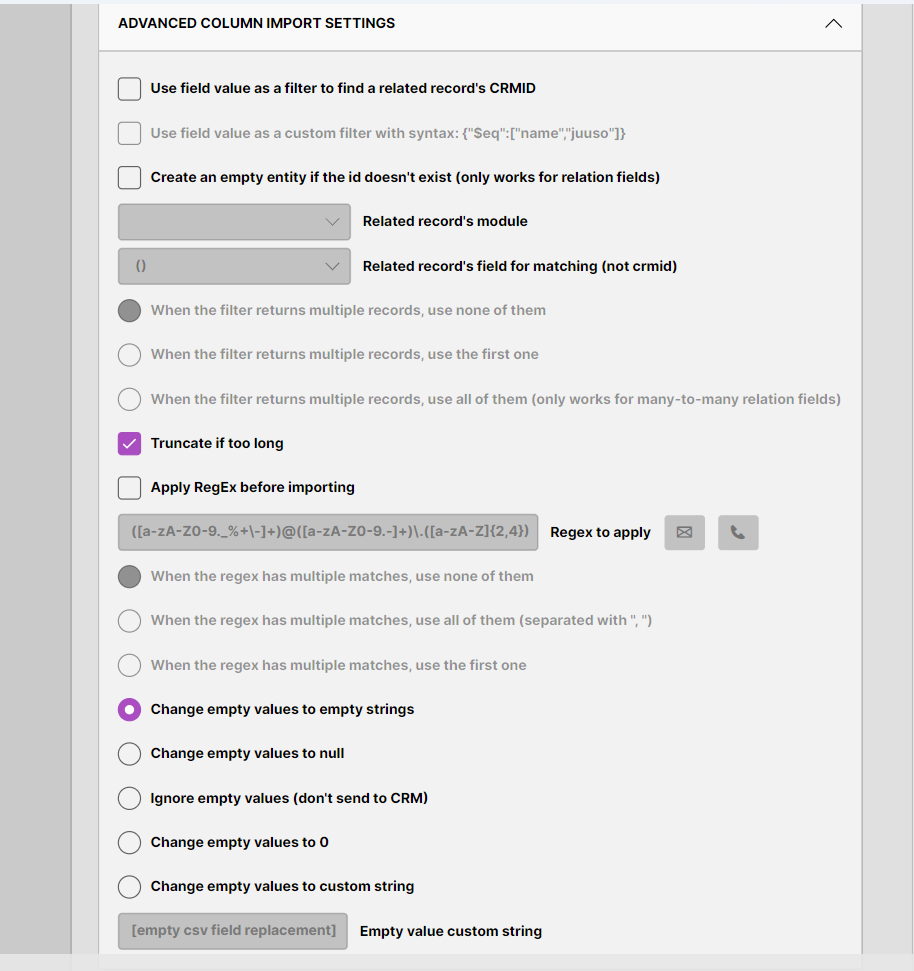
The Advanced column settings section defines how the value of an individual column is handled before it is saved into the CRM.
The settings are divided into four main groups:
Relation settings
Define how the column value is used to find or create related records (relations).
These are used especially with many-to-many and lookup fields.
Truncate
Automatically truncates the value if it exceeds the maximum length of the CRM field.
It is recommended to keep this enabled so that values that are too long do not cause errors.
Regex (formatting before import)
Makes it possible to modify the value using a regular expression before saving.
Useful, for example, for:
- cleaning up phone numbers
- validating email addresses
Empty value handling
Defines what is done if the CSV field is empty:
- Empty string → saved as an empty value
- Null → the field value is removed
- Ignore → the field is not updated at all
- 0 / custom value → replaced with the given value
Import settings
Define how the importer handles rows:
Only create records
creates new records, does not update existing ones.
Only update records
updates only existing records (based on matching).
Create AND update records
tries to update, and if no match is found, creates a new record.
Multiple record-match settings are only used in update modes.
Execution control
Buttons:
- START TEST IMPORT – runs only the first row
- START IMPORT – performs the full import
- PAUSE / CONTINUE / CANCEL – available during the run as needed
The log window shows:
- INFO messages (successes)
- WARN messages (warnings, e.g. truncation)
- ERR messages (rows that could not be processed)
Operating logic (conceptual section)
CSV import is based on the following principles:
Starting module
The module defines into which CRM entity records are created or what is updated. Each module has its own required fields and separate allowed attributes.
Fields
Each CSV field must be directed to a CRM field or intentionally ignored.
A many-to-many field links one record to several others.
In import, this means that based on the CSV value, one or more existing records are searched from another module and a link is created between them.
The Use field value as a filter option defines that the value of that field is used as a search criterion to find the corresponding record from another module. Related record’s module indicates from which module the record is searched, and Related record’s field for matching is the matching field of the relation data on the basis of which the correct relation is searched.
Matching logic
The Update Matching Column field is critical in updates:
- If the value is not found, the row cannot be updated
- If Update Matching Column produces multiple matches, the action defined by the selected multiple record-match setting is used
- In create-only mode, matching is used to prevent the creation of duplicates
Value handling
Values can be:
- Replaced with empty values
- Changed to null
- Ignored completely
- Modified with regex
- Trimmed to the CRM’s maximum field lengths
Exceptions
- Relation fields require the correct module and matching field.
- Errors do not stop the run unless the paused when exception happens setting is used.
CSV import is radically deterministic: each row either succeeds completely or fails.
Notes / Warnings
- Import finished does not mean that the data was transferred. Check the system and the log.
- If the Update matching column field is missing in update modes, it causes errors for all rows.
- Even a single “NO FIELD FOUND WITH NAME” prevents the row from being imported
- The CSV file must be UTF-8.
Examples
Example 1: Mass event registrations – importing new data
Goal: Import new mass event registrations into the CRM.
Steps:
- Select the mass_event_registrants module.
- Select CSV fields such as firstname, lastname, email, mass_event_id, survey_answers, etc.
- Map the CRM fields automatically or manually.
- Add the Ignore this field setting to columns that the CRM module does not use.
- Select Only create records.
- Run a test import and make sure it was successful.
- Start the full import.
Result: new registrations are created, and the corresponding event is searched from the CRM using mass_event_id.
Notes:
- If the participant is a duplicate, the importer does not perform an update in create mode
Example 2: contacts – updating existing data
Goal: Update contact phone numbers based on email address
Steps:
- Select the contacts module.
- The CSV contains the fields: email, phone.
- Map email → as the Update match column field.
- Select Only update records.
- Select the desired duplicate handling, such as When the filter returns multiple results, update none of them.
- Run a test import and check that the formatting matches (e.g. phone number regex).
- Perform the full import.
Result: the importer updates only those contacts whose email matches a CRM record, and if there is more than one contact with the same email, then with the selection used in this example none of those contacts will be updated.
Notes:
- If the email is not found in the CRM, the row data will not be updated in the CRM.