
General
The super transfer is the call forwarding system in the Contact Center. Using this feature, agents can easily forward calls inside and outside the system. We are offering two ways to forward calls. Two ways are called the blind transfer and the accompanying transfer. The main difference between these two ways is that in the blind transfer, the agent making the transfer hangs up when the transfer begins. In the accompanying transfer, the agent stays on the line until the transfer is finished.
When using the blind transfer the person forwarding the call has no way to know if the transfer has been successfully completed. During the accompanying transfer, if the transfer fails, the agent receives a message about the situation and if possible, the call returns to the agent.
Start – Forwarding calls
No matter which style you want to use when forwarding the call, the beginning of the procedure is identical. The pictures below explain the forwarding process step-by-step. Possible exceptions in the transfer process are described later in this guide. These directions describe the successful transfer, and error cases are explained at the end of the guide.
- Select transfer

- Pick where to forward the call
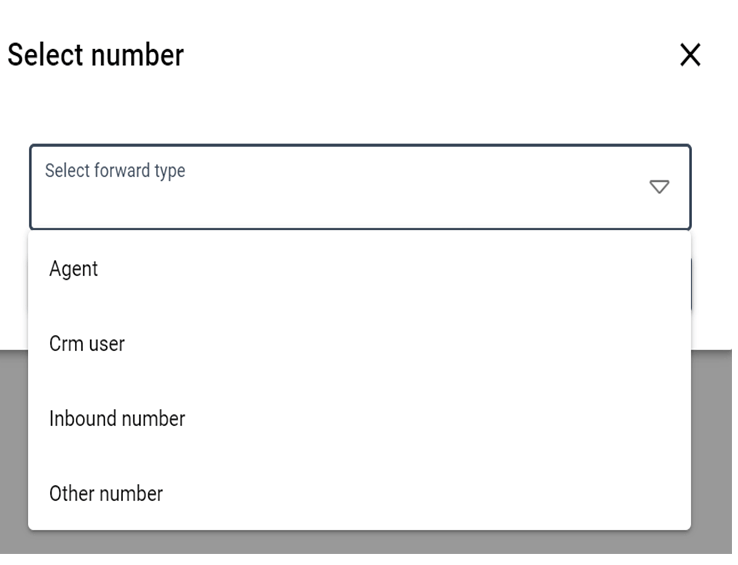
- Pick the wanted number and press forward
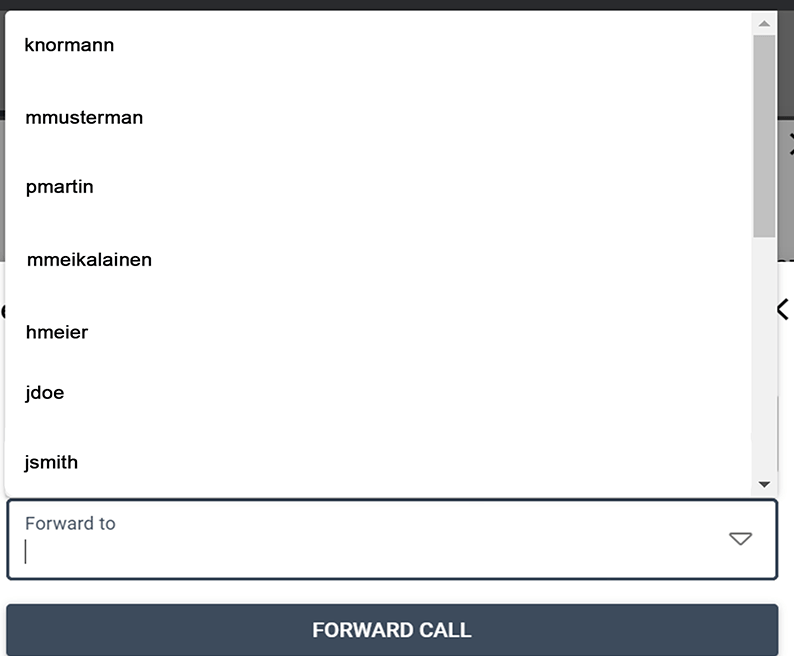
- Wait until you hear “Transfer”
If doing the blind transfer, you can end the call after step 4. Please note that if you do this, there is no way to tell if the transfer was successful.
- Wait until the transfer is complete and you hear “transfer onnistui”
- After successful transfer the call will end automatically.
Exception – Outside the system transfer
Follow the instructions above, but in part 3, instead of the dropdown list in names you will see the box like this:
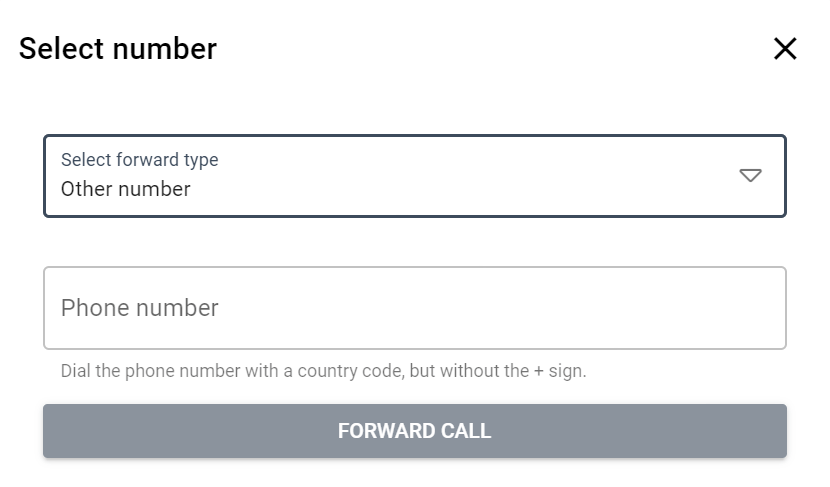
Type the number in the field, press forward the call, and follow the instructions above starting at part 4. The number can also be pasted from the clipboard of the device used.
Forwarding calls to service numbers outside the system is billed separately.
If the transfer fails
These instructions apply only to the accompanying transfer. In the blind transfer, you do not get any messages since you hang up after the transfer begins. This is why in the blind answer you will never know if the transfer was successful or not.
In most cases, the failed transfer will return the call to the person making the transfer. This happens except when the person who is being transferred hangs up.
Messages received by the agent in cases where transfer fails:
- Kohde ei vastannut
- The person to whom the call is forwarded did not answer their phone.
- Transfer epäonnistui
- Transfer has failed.
- Uudelleen yhdistetään puhelu
- Call returns to the agent.
- Transferattu katkaisi puhelun
- The person being transferred hung up the phone.