
General
Once you have completed the survey, you can distribute it via an email link. The survey can be attached to the email as a text link or a button. In this guide, we will show an example of both.
Start
For this guide, we assume you already have an email template for sending this survey. Go to the entity card of the email template you have created for sending the survey and select Edit content.
Adding a link in text form
Go to the desired area of the email – this is the block where the link will be added. In the example image below, we will insert the link in the example text block. Click Add in the edit bar, then select the Link to… option from the drop-down list.
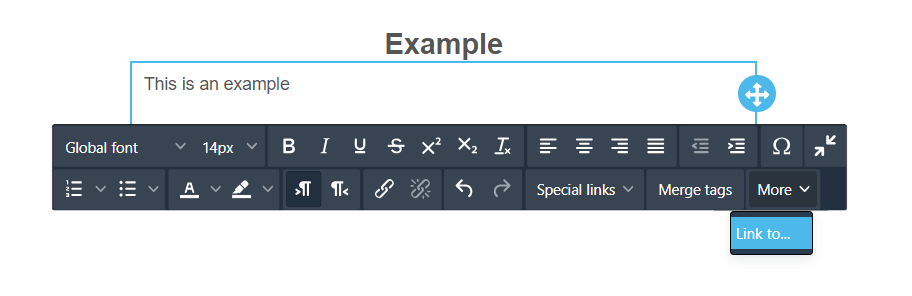
Next, choose what you want to link to. Select the Survey option and press OK.
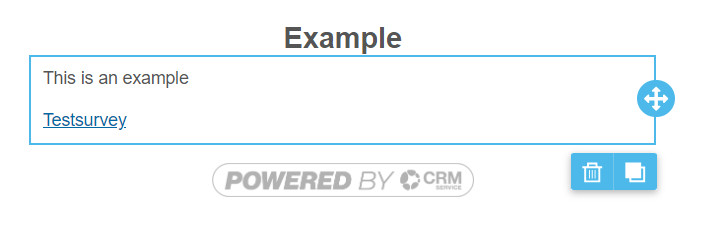
Then select the desired survey from the drop-down list and press Save. Once the linking is successful, a link with the name of the survey will appear in the selected block. You can edit the link using the tools provided by the email editor. You can also re-type the link name – just remember not to delete every letter of the link at once, or the link will disappear and you will have to link it to the email again using the steps above.
Only surveys that are marked as active will appear in the list of selected surveys. If the survey is kept for archiving purposes, it is recommended to uncheck the Active checkbox of the survey so that it does not appear in the list of selected surveys when making email links.
Linking the survey to a button
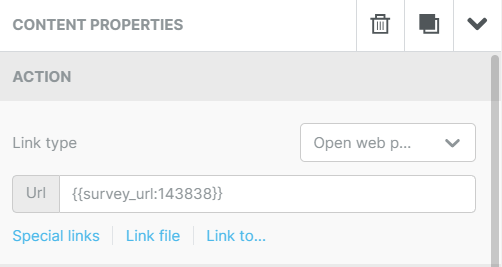
Linking a survey to a button is done by first adding the button from the Content menu and inserting it in the desired location. Once the button is selected, you go to the Content Properties section on the right and from there to the Action section. Below the URL bar, there is a Link to… which can be clicked to add a link to the survey.
Just as in the text link step, select survey as the link insert type and select the desired survey from the list. After a successful linking, the following text will appear in the button URL box, indicating the CRMID number of the survey to show what survey is linked to that specific button (see picture below).
The survey has now been linked to the email that can be send to recipient.
Surveys – Frequently Asked Questions
Can I edit the style of the survey?
In the survey Theme settings, you can edit multiple style settings like fonts, backgrounds, etc..
Does the survey scale for mobile devices?
Yes, the survey will scale for mobile use, and you can use the preview settings to check how it will look on different devices.
Can I use a template when creating a survey?
Survey Editor has a few ready-made theme templates for easy-to-use layout settings. You can also make a survey you like and then copy it by using a module tool [insert link]. It is also possible to order a special template made by us for you by contacting our support.
Can I edit the survey after it has already been sent?
Editing the survey is always possible on the surface level, assuring that respondents will get perfect survey. This means that question title and answers visible to receivers can be edited at any time. However to avoid logical errors the values related to question and its answers will be locked from edits after there has been at least one answer to the survey.
How many times users can answer the same survey?
Survey answers are limited to one per sent link to automatically prevent multiple answers for the same survey. If there is a need to receive multiple answers from the same person, using a new email with the survey link does the trick.
Can I edit the survey answers tab to organise the answer data the way I want?
The Survey Responses tab only allows you to view the responses and organise them by date. However, you can always use the Excel export feature to get the answers into the Excel spreadsheet where you can sort, organise and edit them as you wish.
Is it possible to see the answers in the form of graphs?
Where possible, the Survey Responses tab will display the responses to the question using a doughnut or bar graph. This feature is available for all fixed answer question types, but not for open-ended questions such as text answers.