General
Shortcuts are elements located on the user’s dashboard that allow the user to quickly perform various actions. A shortcut can be linked to an entity, filter, module tool, or link to an external website. By default, the shortcut button is black text on a white background, but you can also give the link its own icon, and change its background color (see picture below).

This guide focuses on the special features of shortcuts. For more general information about dashboard elements, see the article Home Page Elements.
Quick start guide
1. Go to the desired front page view and select Add new element.
2. Select Shortcut from the drop-down menu.
3. Enter the text for the link to be displayed on the front page.
4. Specify the link destination.
5. (Optional) Specify the link icon and background color.
Quick link basics
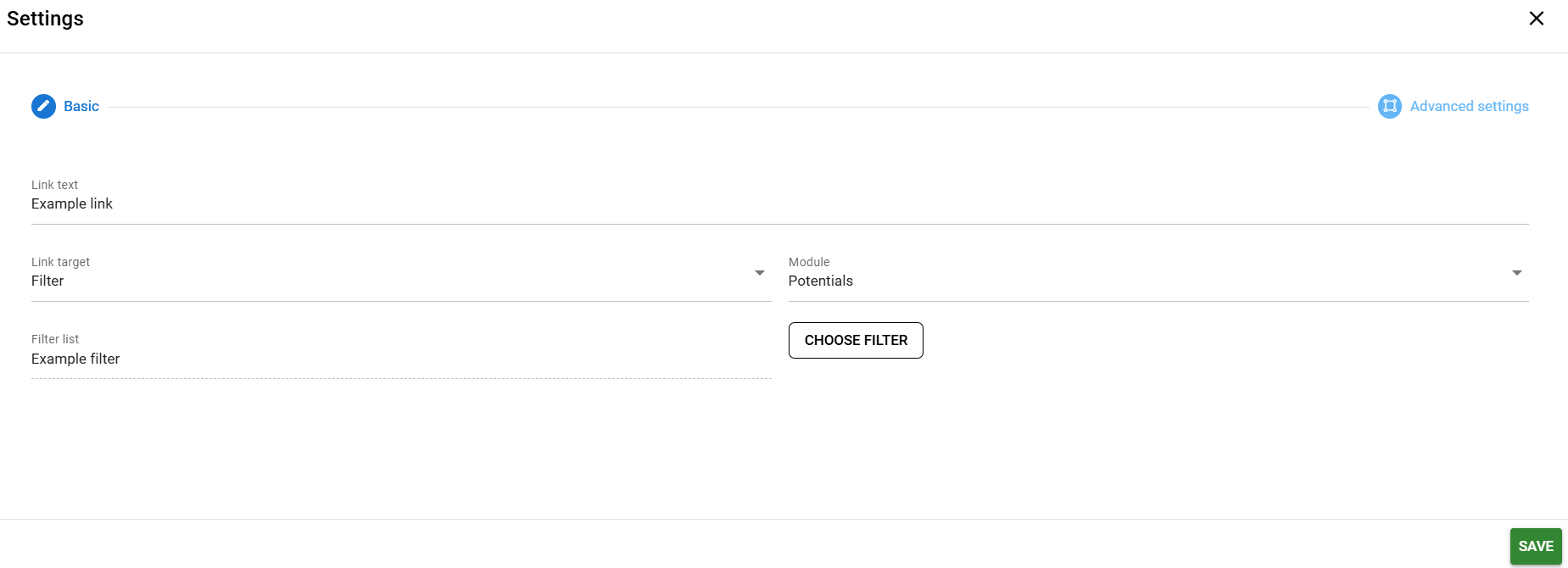
The settings required for a quick link are always determined by the destination of the link being added. The system user interface always guides the user to fill in the required information when selecting the link destination. In the example below, we have created a shortcut to a filter, in which case the system asks the user to first select the desired module and then the desired filter after selecting the destination. Select the filter with the Choose filter button (picture below).
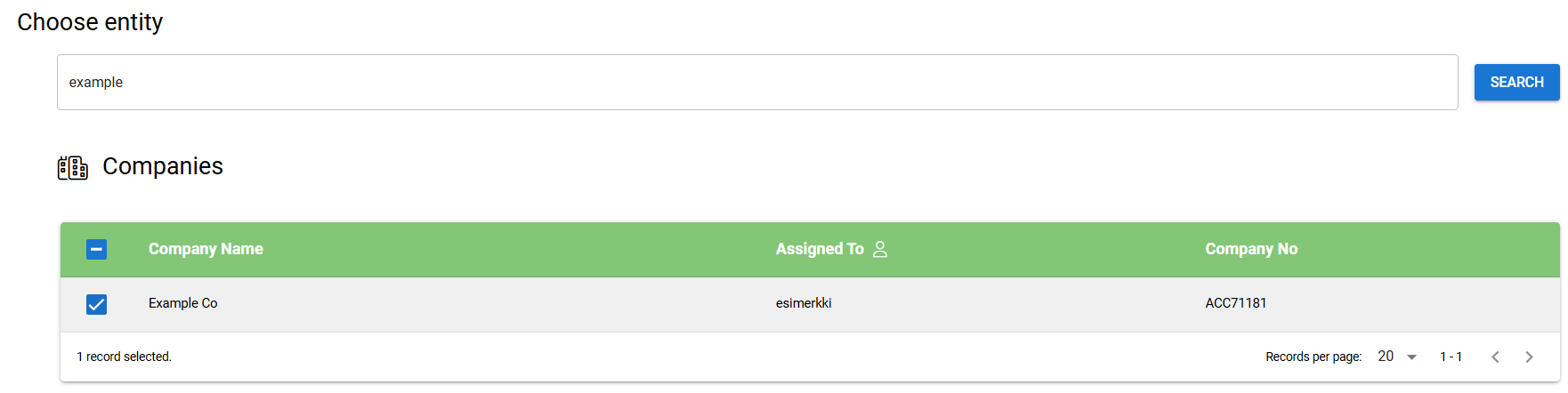
When adding a shortcut to an individual entity, i.e. a record, the user must select the module after defining the target. The user must then search for the desired entity in the module, after which it can be selected from the list displayed based on the search (picture below).
When the user adds a shortcut to a module tool, the system displays a drop-down menu for selecting the desired module tool. The system only displays module tools that can be displayed on the system dashboard in this drop-down menu.
When adding a shortcut to an external website, the user only needs to enter the address of the website in the address bar that appears (the https:// prefix is pre-filled). Unlike other buttons, buttons that lead to external websites always open the link in a new tab.
Advanced settings for shortcuts
In the advanced settings for shortcuts, the user can select the icon to be displayed on the shortcut button and change the background color of the button to their liking. The use of icons and colors is not mandatory, but it can make it easier to find shortcuts in cases where there are several of them on the same home page view.
To add an icon, click the icon in the row to open a pop-up window with available icons, from which you can select the icon you want. When an icon is selected, the icon and its name are displayed in the settings pop-up window (picture below).

The background color of the Shortcut button can be changed by pressing the color picker icon, which opens the color selection view. The color can be selected, for example, using the visual selection views, of which the system offers three different types. The selection view can be changed using the buttons at the bottom of the color picker. If the button must correspond exactly to predefined values, the user can enter the desired color at the top of the view using its HEX or RGB value.
Once the color has been selected, the shortcut settings show an example of the color used and the HEX value for that color (picture below).

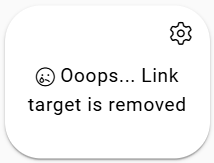
Shortcut error messages
With the exception of external links, the system recognizes links that the user cannot use for one reason or another. This may be because the user does not have permission to view the shortcut target or because the shortcut target has been deleted from the system.