
Beta version
General information
Synchronizing Outlook calendar with CRM activities helps users to connect their CRM calendar with Outlook. Synchronizing activities from CRM to Outlook, requires a workflow by the admin user. If the feature is not working, please contact the admin user of your system.
Get started
Outlook sync settings can be accessed by opening your profile in the top right corner of the system and clicking on the module tool button, under which Outlook sync settings can be found.
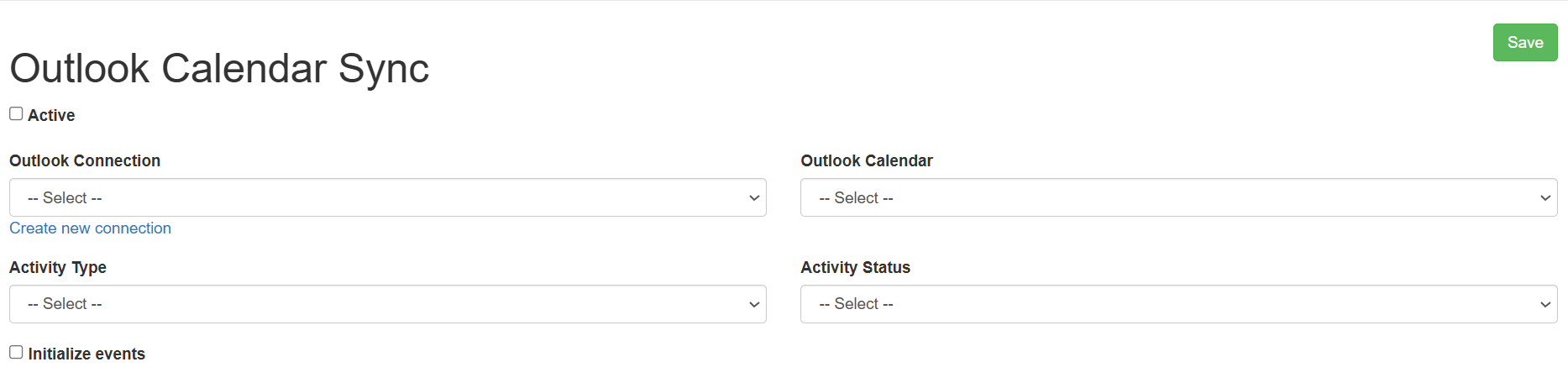
Outlook calendar synchronisation can be made active in the box below the header. The first step is to select the connection to use, or create one if it does not exist. Then select the Outlook calendar in use that you want to synchronise with the CRM activities.
The activity type and activity status are settings for fields in the CRM system that have no equivalent in Outlook. These settings determine the type/state in which activities from the Outlook calendar are set in CRM. In addition, only those activities whose type/state matches these settings will be transferred from CRM to Outlook.
The Add Events checkbox opens two drop-down menus for the user to control how far into the past and how far into the future the data is synchronized.
Once these settings have been filled in and saved, the calendar synchronisation is complete. Once an existing synchronisation exists in the system, it can be deleted, if necessary, using the Delete button next to the Save button.
Restrictions
There are a few limitations to synchronising Outlook and CRM. For example, only the first event of a recurring Outlook event is synchronised to the system.
An event deleted from Outlook will also be deleted from CRM, but an event deleted from CRM will not be deleted from Outlook.
Private Outlook calendar events will never be synchronized to CRM
CRM also does not send contact information to Outlook. In addition, contact information added to Outlook will only appear on the activity card if the contact already exists in CRM.
If the Contact has Account relation in the system, this connection is automatically added to the activity, since Account always follows Contact to activities if relation is available.
Create the workflow (admin guide)
Admin users must create a workflow at this stage of the release so calendar events created in the CRM will be added to Outlook automatically.
- Go to Settings -> Workflows
- Create a new workflow to the Events module (not calendar)
- Run the workflow: Everytime the record is savedThere is no need for conditions but can be applied if not all activities wish to be synchronized to Outlook
- Create a new task -> Outlook Calendar Sync, it can be run immediately
Upcoming features
When calendar synchronization is enabled, users can configure the number of past and future activities—created before synchronization was activated—that will be synced between CRM and Outlook.
Settings for this feature are visible, but do not work.
Outlook Calendar Sync – Frequently Asked Questions
Why are Accounts added to Contacts when Calendar sync is used?
In the CRM Activities, Account always follows Contact if there is an existing relation. The same logic is used in the Outlook calendar sync, so if the contact added to calendar activity has an account relation, it follows the contact to the calendar when synchronization is used.