General
The AI assistant in the email editor can help you write emails in many ways. It can create the content of emails from scratch according to the instructions given to it. The AI assistant can also edit and improve existing text, for example by correcting grammatical errors, changing the style of the text or translating it into a different language.
Start
The AI assistant is not available for all elements of the email editor. The elements where the assistant can be used are Title, Paragraph, List and Button. The AI assistant can be used both for creating and editing text.
It is important to remember that while AI-generated content can be useful it cannot completely replace human input. A human hand is essential, as often just grammatically correct text is not enough to appeal to readers, most of whom have already learned to recognise AI-generated text.
It is also worth bearing in mind that the generated text may contain placeholders such as [date] or [your name], which must at least be replaced with the appropriate information before the message is sent, even if the user is otherwise happy with it.
Generating text
1. From the sidebar, add a paragraph, list, button or title to the content area of the editor.
2. Select the content area, then click Write with AI.
3. Type the prompt you want.
4. Click Create and check the AI output.
5. If you are not satisfied with the content created by the AI assistant, you can create a new version.
6. Click Add to move the content to the block in the editor
Editing text
1. Select the desired content block and open the AI Assistant.
2. Select the desired editing option (translation, tone, etc.)
3. Once you are happy with the changes, update the text.
Tokens
Using AI features of the Email Editor consumes tokens. Each client instance that has a paid email plan can use 1 000 000 tokens per month. The amount of used tokens is displayed on the AI text generation screen, right next to the “Generate” button (see the picture below).

The amount of tokens used depends on the text being generated. As a general rule of thumb, 4 characters will consume one token. However, when using special symbols or non-English characters (such as ä, å, and ü), the token consumption is slightly higher, and 3 characters consume one token.
Tokens are used when AI generates the answer, so every time when Generate or Regenerate buttons are pressed. Applying the generated text does not consume tokens. Used tokens reset to zero at the beginning of the month.
Example of use – Base of the monthly members’ newsletter
Let’s walk through an example of what the monthly newsletter sent to members would look like when created with the AI Assistant.
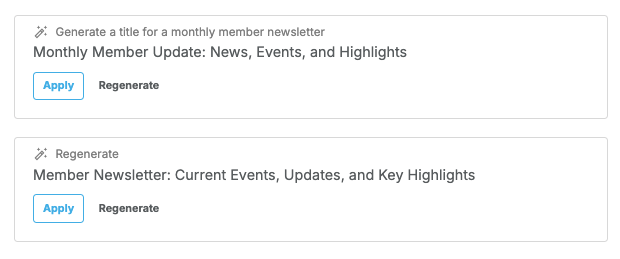
First, select the header element, open the AI wizard from the side menu and type the desired prompt in the text box that opens. In this example, we asked the AI to write a title for a monthly membership letter.
We were not completely satisfied with the first version, so we pushed the generation again. The AI shows us both versions (see picture below), but we choose the first one after comparing the two options.
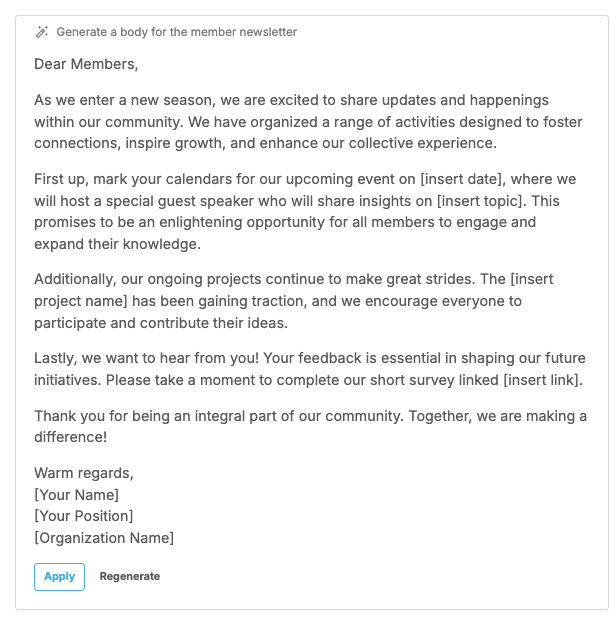
We then added the Paragraph content element, where we asked the AI to generate the body of the monthly membership letter. The AI here works with a very limited prompt, so it comes up with its own possible options for the content of what could happen during the month and adds placeholders inside the square brackets to mark the points where the user is at least required to take action (see picture below).
We also asked the AI to create a list of possible member satisfaction questions which we added to the end of the email with a ‘Take survey’ button.
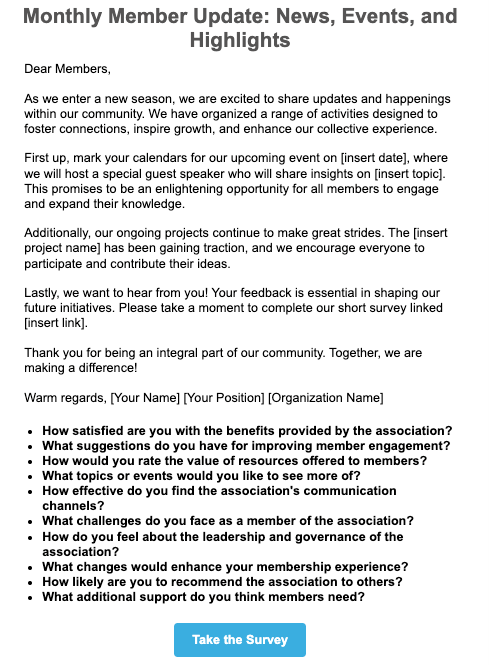
The final AI-generated email would look like this before any editing: